The newest model, Kindle Keyboard/Fire, and the Deluxe model, Kindle DX, natively support the PDF format, so converting the files from PDF to a digital book format is no longer needed for these versions of Kindle models.
Previous models, Kindle (1 and Touch), recognize digital books in .azw, .txt, .mobi or .prc formats. Thus, in order to view PDF files on this version of Kindle, you have to convert those to a format recognized by it. Read below how you can convert from a normal format to PDF and after that sending it to Kindle (1 and Touch).
On this page:
- Transfer PDF documents via USB to read on Kindle DX, Fire, Keyboard, Paperwhite or Voyage
- Send PDF to Kindle 1 and Kindle Touch via Amazon's file converting service and USB connection (using Stanza, MobiPocket and PDFRead)
Kindle is a wireless reader device manufactured and distributed by Amazon.
Kindle 1 and Kindle Touch (the first and second generations of kindle readers) only support the following document file types: .AZW (Kindle proprietary format), .txt, .mobi or.prc. Therefore, sending PDF files to a Kindle 1 or a Kindle Touch device requires converting them to a recognized format first. This can be done in two ways:
- emailing the PDF to Amazon, where after a conversion into the AZW format it will be sent to the Kindle device.
- converting the PDF on your computer to AZW and transferring it afterwise to the Kindle device
Starting with the third generation of kindle devices (Kindle DX, Kindle Fire, Kindle Keyboard, Kindle Paperwhite and Kindle Voyage) all support the PDF file format natively so 3rd party programs are no longer needed to either convert the PDF files to specific eBook formats or to optimize the format for reading.
Transfer PDF documents via USB to read on Kindle DX, Fire, Keyboard, Paperwhite or Voyage
Starting with the 3rd generation, the Kindle devices have native PDF support so converting the PDF files to a Kindle supported format like AZW or PRC with external programs is no longer needed. If you already have the document in PDF format, all you have to do is transfer the PDF onto the Kindle device and it will be ready for viewing. For documents that aren’t in the PDF format, first you have to convert those to PDF.
This can be easily done using novaPDF and when the conversion is finished just transfer the PDF to the Kindle device directly after connecting it to the computer via USB.
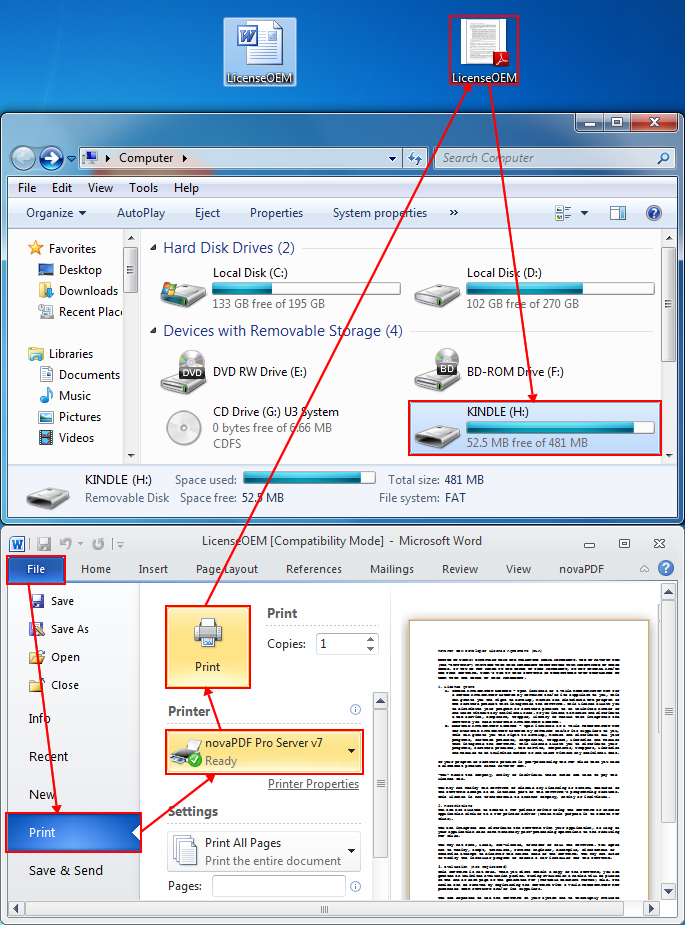
This is an example of a word document converted to a PDF and transferred to the Kindle device directly:
- Open your file with the application that is associated with it (i.e. .docx files with Word, .txt files with Notepad).
- Go to File->Print, select novaPDF as the printer and click OK or Print depending on the application. In the Save PDF File window, select where to save the PDF and click OK to start converting the file.
- Connect your Kindle device to the computer via USB and after the Kindle icon appears in your devices list, go to the location where you saved the PDF document and either drag and drop it on the Kindle device icon under My Computer or copy/paste it there as per your preferences.
- Once the file has been transferred to the Kindle wireless device, it will be ready to be opened using Kindle’s default PDF viewer.
Send PDF to Kindle 1 and Kindle Touch via Amazon's file converting service and USB connection (using Stanza, MobiPocket and PDFRead)
For the newly created PDF to be sent directly to your Kindle wireless device, you need to take the following steps:
- Amazon requires you to verify email addresses you send emails from. To do so, go to the Manage your Kindle page on Amazon and enter the email address you will be sending the PDF from and click Add address.
- Each Kindle account is assigned a unique receiving email address: [email protected]. To make sure you have this set up, go to Your Kindle email address section, click on the Edit info link and enter the yourname part.
- The above email address needs to be configured in novaPDF too. To do so, it is best that you create a printing profile that, after the PDF is created, will send that PDF to your Kindle address. To define a printing profile and set it as active see this article. Just be sure that for the profile defined you modify in the Profile Manager window - > Email tab the email address that the PDF will be sent to.
- Next you just need to generate the PDF file from the application that the original file format is opened in (i.e. Microsoft Word if you are converting a .doc/.docx file to PDF) and once created, it will be sent automatically via email to your Kindle email address.
For the Kindle 1 and Touch generations, the PDF file will be converted to AZW upon emailing it to Amazon and then emailed either directly to your Kindle or to your Amazon e-mail account.
Note: The wireless delivery method for the emails containing the PDF documents requires a small fee if you are using the Whispernet service from Amazon. This fee will only be charged if the document is delivered successfully to your Kindle device via Whispernet, not if you use regular Wi-Fi connections.
The lack of PDF support for the first and second generations of Kindle devices is no longer as much of an issue as you can also use PDFRead, MobiPocket Creator or Stanza (all of them freeware) to convert your PDF documents to the Kindle format.
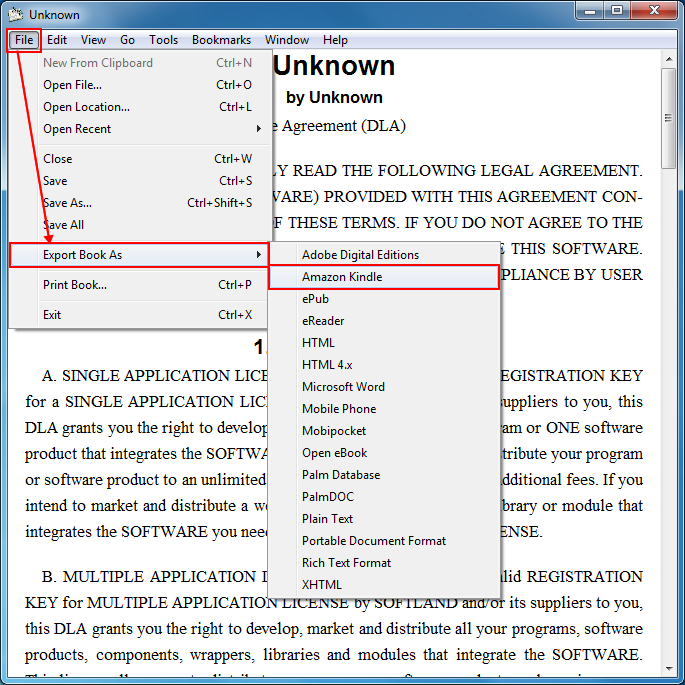
To convert PDF files to AZW (Kindle format) using Stanza:
- Download and install Stanza from lexcycle.com.
- Open the book in Stanza and plug in your Kindle to your computer using the USB cable provided with the wireless device.
- Select File->Export Book As->Amazon Kindle, then browse to the Kindle on the save file dialog.
- Kindle will appear in the list with the name you assigned the first time you registered it at Amazon.
- Once the AZW file is created, select and copy it to the Kindle device.
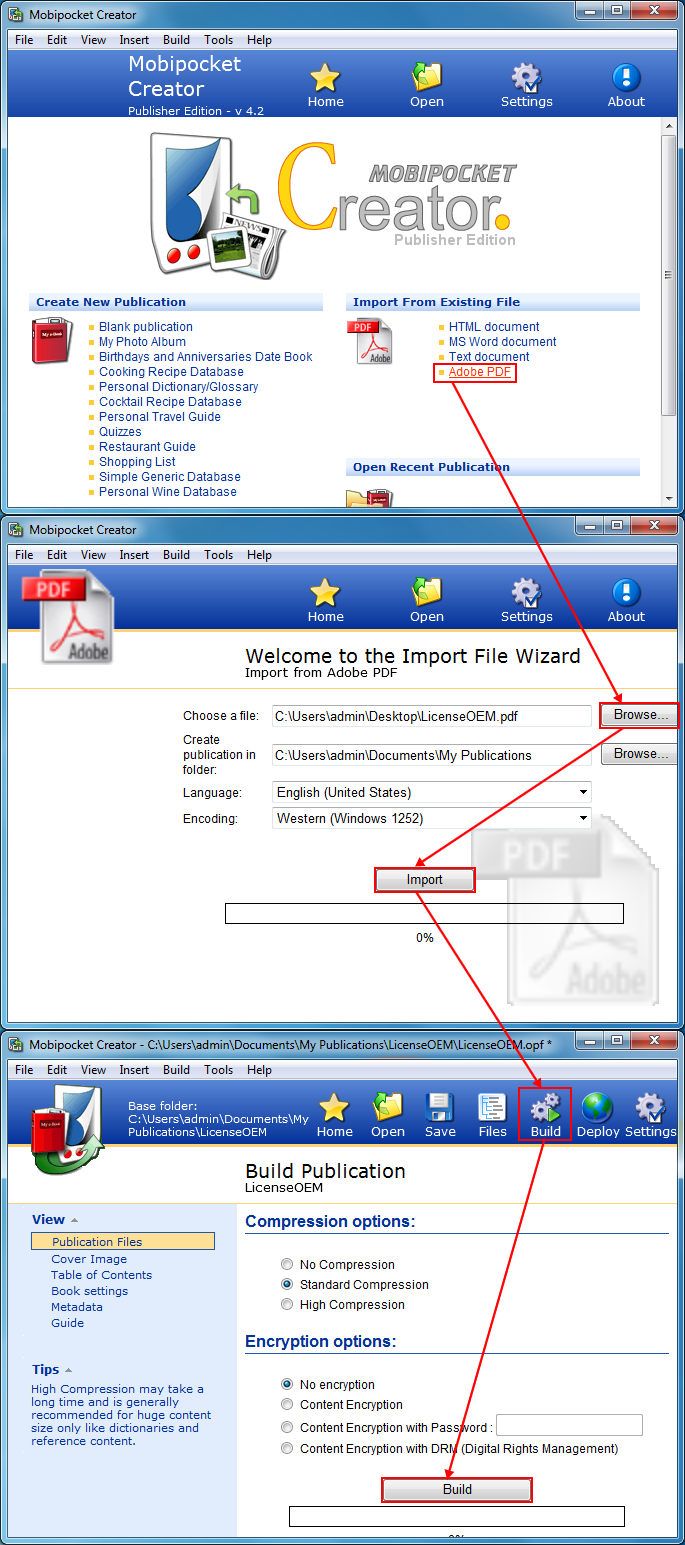
To convert PDF files to PRC (Kindle compatible format) using MobiPocket Creator:
- Download and install MobiPocket Creator from MobiPocket.com (you need to make sure you install the Publisher).
- Open MobiPocket Creator and on the right side of the main screen you should have the Import from existing file options, one of them being the PDF format.
- Choose the files you need and import them.
- After importing the files, select Build from the top menu.
- This will create the file with the .prc extension recognized by the Kindle and open the folder where the file is saved.
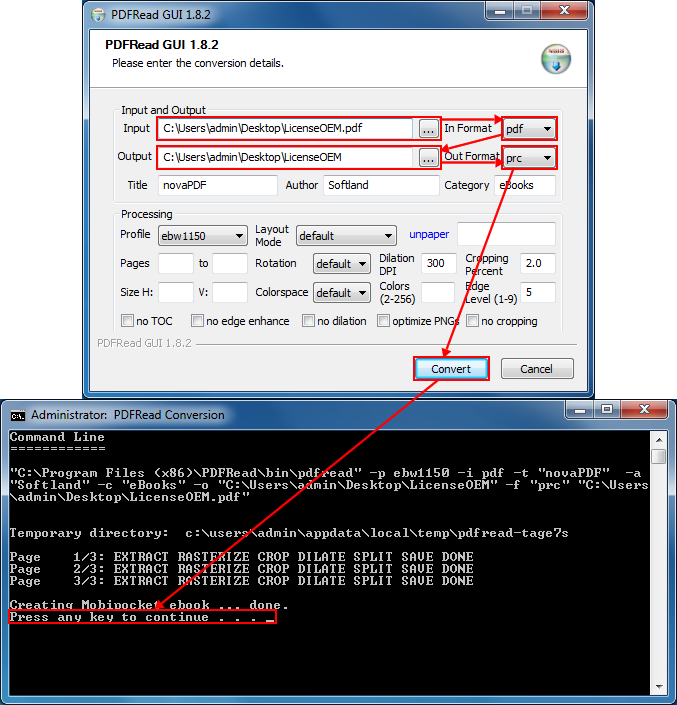
To convert PDF files to PRC or another Kindle compatible format using PDFRead (a freeware eBook conversion program) follow these steps:
- Download and install the PDFRead application from http://www.mobileread.com/forums/showthread.php?t=21906
- Open the application, browse for the input PDF file you want to convert to the Kindle compatible format, select an output format for the file (prc, imp, lrf etc), choose a processing profile and click on Convert to start the process.
- After it is finished search for the Kindle compatible format on the local computer and transfer it via USB to the Kindle device.