With novaPDF you can reduce the size of the generated PDF file either directly from the save PDF window or by modifying the printing profile.
On this page:
- Adjust images in the original document to reduce the size of the resulting PDF
- Adjust the PDF compression/downsample settings in novaPDF
- Disable font embedding in novaPDF
- Change PDF quality from the save dialog
When creating a PDF file from a document that contains multiple image, its size might increase to the point where is larger than the original document. To reduce the size of the resulting PDF file, either the original document should be adjusted (by reducing the quality of the images, or removing the cropped regions of the inserted images) or the PDF compression settings should be set to the highest compression value in novaPDF's Printing Preferences.
Adjust images in the original document to reduce the size of the resulting PDF
A common PDF size problem occurs when the printed document contains images that were inserted in large sizes and then reduced within the document itself. However, even if you reduce the dimensions of the image in the document (or the program does its automatic resize), the entire size of the image is still kept.
So one solution to reduce the file size of a pdf printed from a document with images is to force the program into compressing and deleting the cropped areas of the images in the entire document. While programs such as Microsoft Word offer options to do that even after you've added the images, for other programs you should crop/re-size the image with an image editor and only after that insert it in the document.
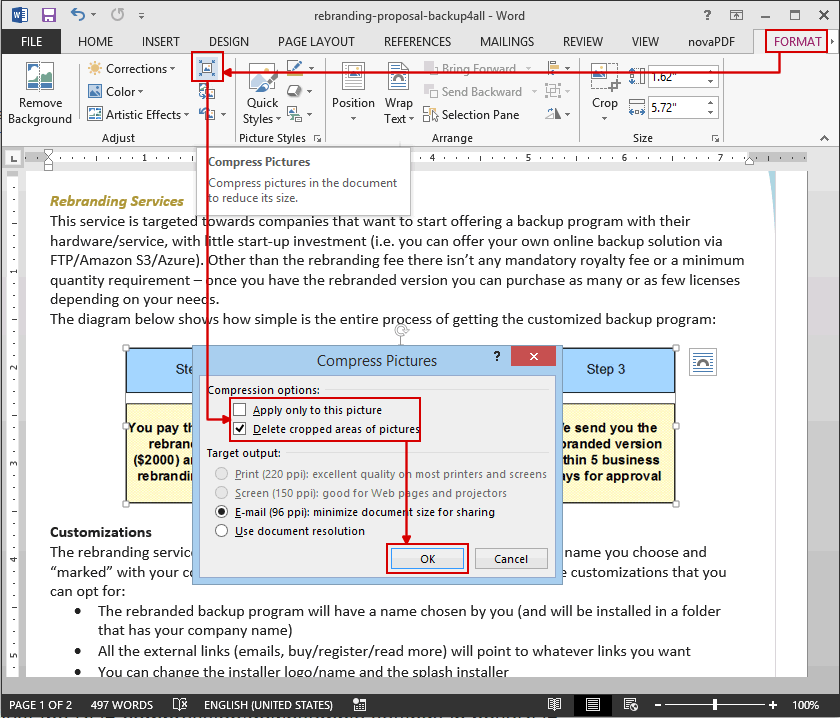
An example on how to compress and delete the cropped areas of the images in a Microsoft Word document (however please make a copy of the word document before doing this, so that you'll have the original copy with higher resolution and non-cropped images, and this second one with lower resolution and cropped images):
- Make a copy of the original word document, and open the copy.Double-click on the image, go to the Picture Tools tab and click on Format.
- A new window with compress options will be opened. In the Compress Pictures window, make sure that Delete cropped areas of pictures is selected.
- Now click on OK and this should considerably reduce the size of the PDF.
This is how you can find and use the Compress option in Office:
Adjust the PDF compression/downsample settings in novaPDF
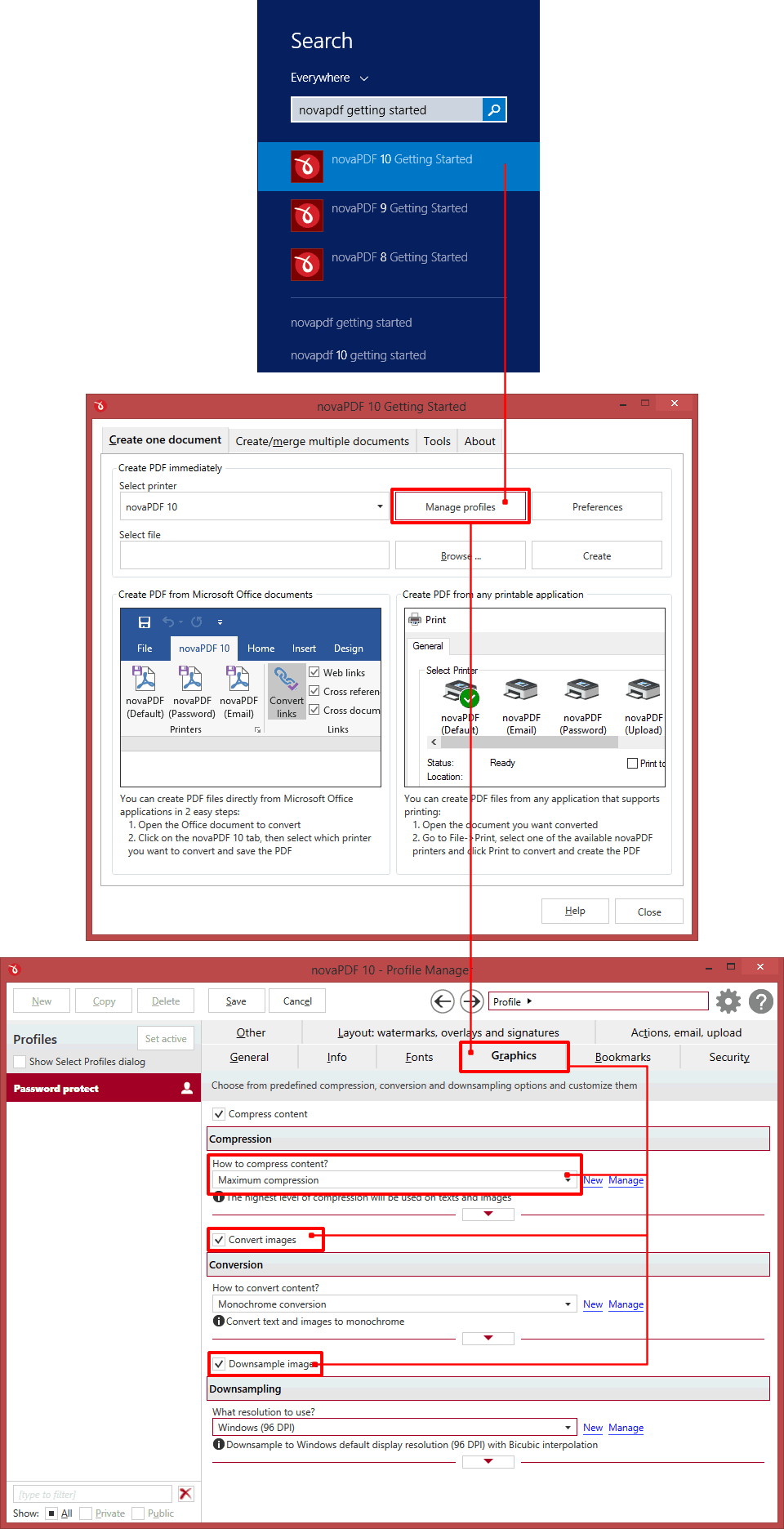
For the printing profiles in novaPDF there is a Graphics tab that lets you select several Predefined graphic presets or define a custom one. By default Compress Content is selected, which will compress the text and graphics when converting to PDF so that the size of the PDF file will be smaller. However, this is the Normal compression so if you want to have the smallest possible size of the resulting PDF, the compression settings should be set to the Maximum Compression value, as well as checking the Convert images and Downsample images options.
To set the Compression/Convert/Downsample options:
- In Windows 10/8 press on the Windows button and type "novaPDF Getting Started" (for Windows 7 or previous click on Start->Programs->novaPDF and open it from there). Click on the first result to open novaPDF.
- On the Getting Started window press the Profile Manager button.
- In Profile Manager, for the printing profile you're using go to the Graphics tab.
- For Content Compression click on the Normal drop-down and select Maximum
- Make sure the Convert images and Downsample images options are checked as well
- Click on Save to preserve the new profile settings and Close to return to the Getting Started window. Select the document you want converted and click on Create to print the document to novaPDF.
While this will ensure a smaller PDF size, the quality of the images in the resulting PDF file will be lower, so it's recommended to use this only when the PDF is used for distribution, reviewing purposes or to be put on the web, but not when sending a PDF for printing.
Disable font embedding in novaPDF
Another option that could reduce the size of the resulting PDF is not to embed the fonts in the PDF. By default novaPDF embeds the font subsets, to ensure that the recipient of the PDF will see the text with the same font as it was in the original document. However, if you consider that having the font substituted wouldn't be a problem (or if the recipient of the PDF has the fonts you're using), you can uncheck the option to embed font subsets.
Here's how you can disable font embedding:
- In Windows 10/8 press on the Windows button and type "novaPDF Getting Started" (for Windows 7 or previous click on Start->Programs->novaPDF and open it from there). Click on the first result to open novaPDF.
- On the Getting Started window press the Profile Manager button.
- In Profile Manager, for the printing profile you're using go to the Fonts tab.
- Go to Fonts tab and from the Which fonts to embed drop-down select Do not embed fonts instead of the default option (Embed font subsets)
- Click Save and Close to return
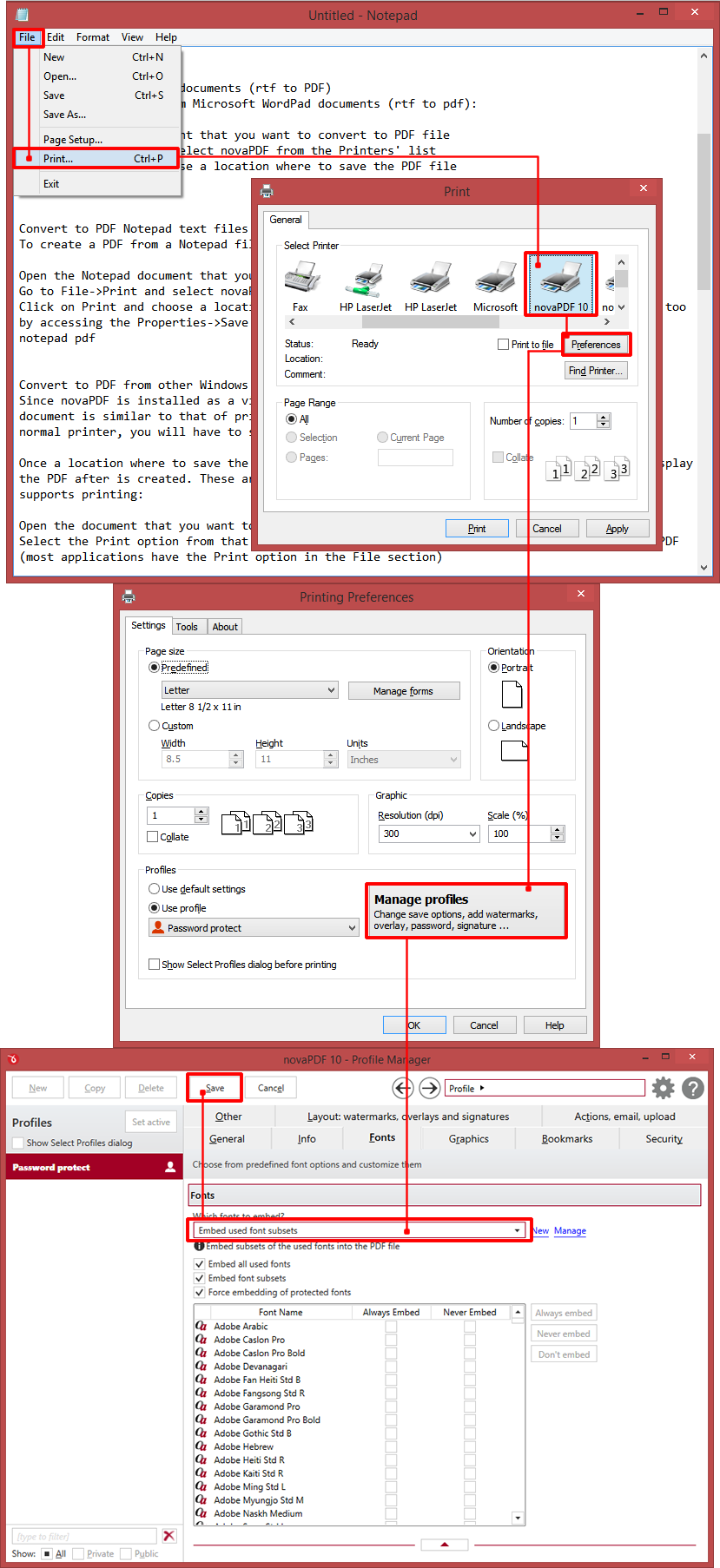
Change PDF quality from the save dialog
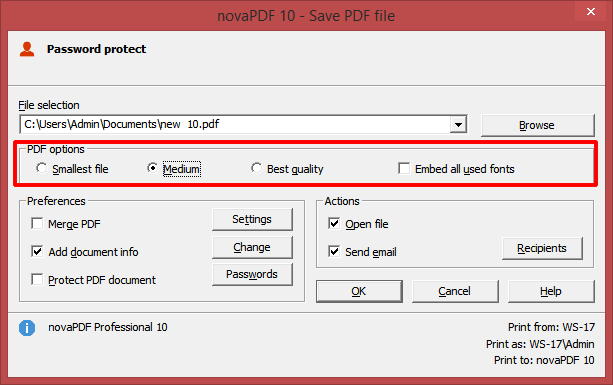
If you do not want to update your current printing profile with PDF quality options, you can reduce your PDF file size during Save. In the Save PDF file dialog (after clicking Print from a document and selecting novaPDF) you have a section for PDF options where you can choose the quality of the output PDF. You have to select Smallest file to reduce your PDF file size. This option only affects the current PDF file, but you can adjust the printing profile using the options above.