QuarkXPress uses proprietary file types to save files created with it (such as qxp, qxd, qxl, qxt). The article below explains how to convert these types of files to PDF documents and highlights key features advantages for using novaPDF as the PDF creator.
QuarkXPress ("Quark") is a computer application developed and released by Quark Inc. and it is designed for creating and editing complex page layouts in a WYSIWYG (What You See Is What You Get) environment. QuarkXPress is mostly used by designers and publishing houses to produce any kind of layout, from flyers to complex page layouts required by magazines, newspapers, catalogs, and similar printed materials.
On this page:
- PDF format advantages and novaPDF specific features when converting QuarkXPress to PDF
- Converting QuarkXPress to PDF with novaPDF
PDF format advantages and novaPDF specific features when converting QuarkXPress to PDF
The qxp, qxd, qxl and qxt file formats are proprietary to Quark Inc. which means they can only be managed by the QuarkXPress application without any separate viewers or editors to support the file extensions. This is why sharing any file of this type with other users can only be accomplished if the receiving user also has QuarkXPress installed to view and manage the file.
Having your Quark files in a PDF format is an advantage from many points of view including popularity and interactivity (the PDF format can be practically viewed and saved on any computers and offers support for a wide range of applications and system platforms), standardization (PDF is an ISO standard for document sharing and archiving formats PDF/A) and fidelity (the user will not lose any of the qualities and features of the original Quark document). Also using novaPDF as the printer driver takes the PDF customization even further.
With novaPDF you can:
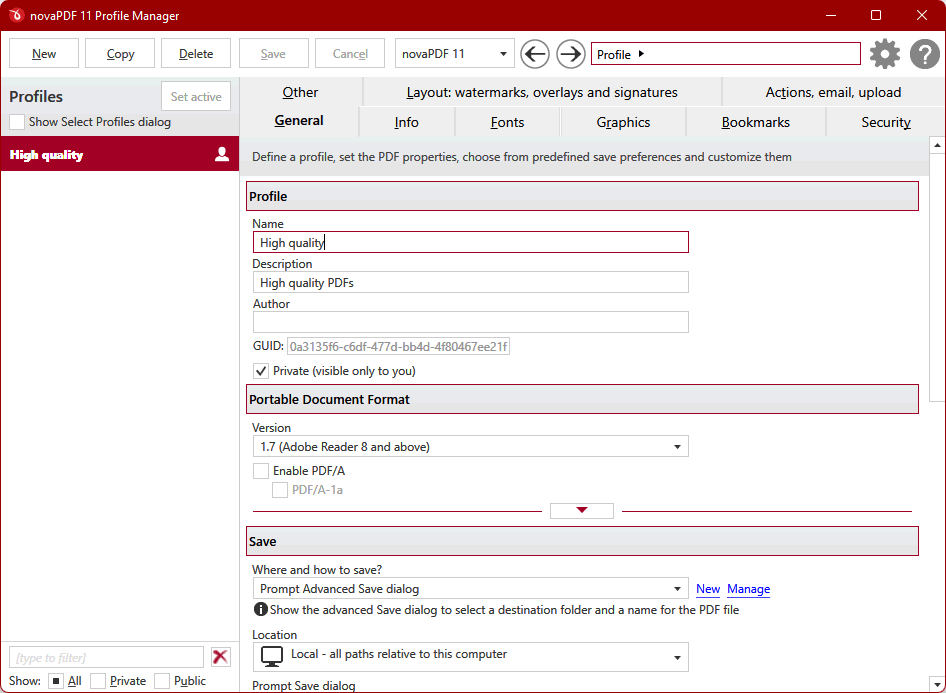
- Add additional document information to the converted Quark file such as Title, Subject, Author and Keywords for a searchable PDF.
- E-mail your converted Quark file automatically with the novaPDF E-mail sending section without the need for using separate E-mail programs. To view a detailed tutorial on how to setup novaPDF to convert and send your documents, read Convert and send PDF via E-mail.
- Password-protect the PDF file automatically when converting to it with novaPDF if your Quark file contains important or sensitive information. That way you can keep the document safe from unauthorized access and other users can only perform the actions you enable on the encryption options.
- Merge the file with other documents after converting it to PDF. As an example, if you need to add an Excel spreadsheet for the Quark file, you can print the sheet using novaPDF to the PDF that contains the Quark document and the PDF files will be automatically merged.
- Apply PDF watermarks automatically (images and text) to the converted Quark file.
- Add bookmarks to the document for the important sections or paragraphs for easier reading.
Converting QuarkXPress to PDF with novaPDF
To convert your QuarkXPress document, library, project file or template
to a PDF format you need to follow these steps:
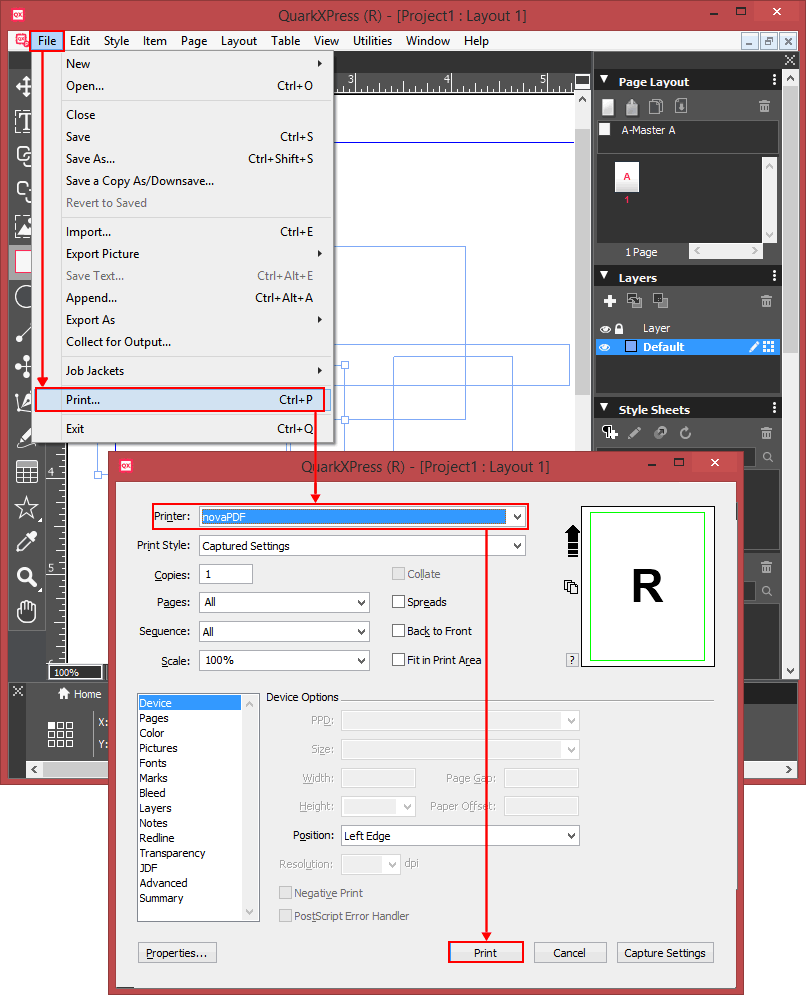
- Open QuarkXPress and go to File->Open or press Ctrl+O, browse for the Quark file you want converted to PDF and click Open.
- If needed, make any additional changes to the document, then go to File->Print or press Ctrl+P and from the Printer dropdown list select novaPDF.
- From the Print Style dropdown list define a custom style or choose the default preset available. You can also select the number of Copies to printed, certain Page numbers, the Page Sequence for printing and the Scale of the printed document.
- In the lower section of the Print window you can setup the printing device specific settings but in case of an external device the options are limited.
- Click on Print, choose a location where you want the PDF file saved and click on OK. The Quark file will be converted to PDF and will contain the features and options selected for it.