


Install and configure novaPDF 7 (or older) by using the command line.
NOTE: This article only applies to novaPDF 7 or older, as newer versions have MSI files that can be installed automatically in silent mode without any pop-up notification windows.
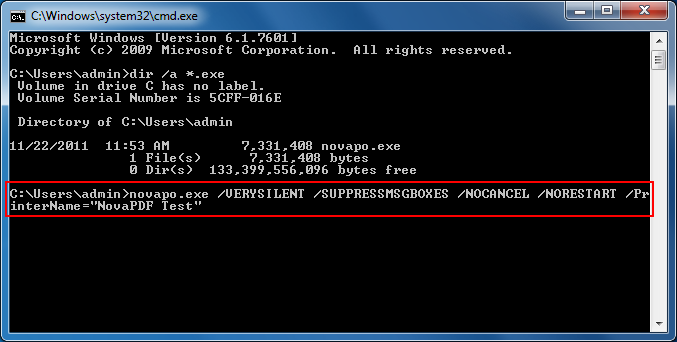
novaPDF can be installed via the command line too. This is useful if you want to install it silently and have it already configured using a set of command line parameters. Here is an example of a command line instruction that:
novapo.exe /VERYSILENT /SUPPRESSMSGBOXES /NOCANCEL /NORESTART /PrinterName="novaPDF Test"
- will install novaPDF Professional
- will not show a progress window during installation ("verysilent" installation)
- will not display any message boxes when installing
- won't allow the installation process to be canceled
- won't restart the computer after the installation will be finished
- will rename the novaPDF printer (as it will appear in the Printers list) to "novaPDF Test"
Below is a detailed list of the command line parameters that are accepted when calling the novaPDF setup:
- /SILENT, /VERYSILENT - Instructs Setup to be silent or very silent. When Setup is silent the wizard and the background window are not displayed but the installation progress window is. When a setup is very silent this installation progress window is not displayed. Everything else is normal so for example error messages during installation are displayed. If a restart is necessary and the /NORESTART command isn't used (see below) and Setup is silent, it will display a Reboot now? message box. If it's very silent it will reboot without asking.
- /SUPPRESSMSGBOXES - Instructs Setup to suppress message boxes. Only has an effect when combined with /SILENT and /VERYSILENT.
- /NOCANCEL - Prevents the user from canceling during the installation process, by disabling the Cancel button and ignoring clicks on the close button. Useful along with /SILENT or /VERYSILENT.
- /NORESTART - Instructs Setup not to reboot even if it's necessary. However, If the novaPDF installer requires restart it would be advisable to do so (restart is required when the installer needs to replace some dll files and cannot do that because they are in use by the system).
- /RESTARTEXITCODE=exit code - Specifies the custom exit code that Setup is to return when a restart is needed. Useful along with /NORESTART'
- /DIR="x:\dirname" - Overrides the default directory name displayed on the Select Destination Location wizard page. A fully qualified path name must be specified.
- /GROUP="folder name" - Overrides the default folder name displayed on the Select Start Menu Folder wizard page.
- /LANG="language" - Specifies the language to use for the installation. When a valid /LANG parameter is used, the Select Language dialog will be suppressed.
- /Languages="language1-language2-..." - Specifies the languages that will be installed (e.g. /Languages="en-it-ro" will install the English, Italian and Romanian language packs) Language codes available in the current version:
- ar - Arabic
- bg - Bulgarian
- br - Portuguese Brazilian
- cs - Czech
- ct - Chinese Traditional
- de - German
- en - English
- es - Spanish
- fi - Finnish
- fr - French
- gr - Greek
- hu - Hungarian
- it - Italian
- ja - Japanese
- kr - Korean
- nl - Dutch
- no - Norwegian
- pl - Polish
- pt - Portuguese
- ro - Romanian
- ru - Russian
- sc - Chinese Simplified
- si - Slovenian
- sr - Serbian
- sv - Swedish
- tr - Turkish
- vi - Vietnamese
- uk - Ukrainian
- /DefaultLang="language" - Specifies the default language. Use short language codes (exactly as those listed for the /Languages parameter above) or the REGST constant for Use regional settings option.
- /PrinterName="printer name" - Name of the installed printer. By default the name is "novaPDF v5"
- /RegisterName="registration name" - novaPDF registration name
- /RegisterKey="license key" - novaPDF registration key (not the SDK application license key, but the printer license key)
- /Default - Instructs setup to set the printer as default printer.
- /NoInstallIfExists - Instructs setup to check if a novaPDF, with the same name, is already installed. If it is, it does not start the installation.
When installing novaPDF, a Start Menu folder will be added for novaPDF. There will also be a menu item for the uninstaller.
If you installed with default directory name, the uninstaller is located at:
bat
C:\Program Files\Softland\novaPDF v5\unins000.exe
The uninstaller has also some parameters for silent uninstall (they have the same meaning as for the installer, see above for details):
- /SILENT
- /VERYSILENT
- /SUPPRESSMSGBOXES
- /NORESTART