Convert files to pdf from Windows Explorer context menu.
On this page:
- How to add novaPDF to the Send To context menu
- How to create a PDF file using the "Send To - novaPDF" option
This tutorial shows how to add novaPDF in the Send To context menu so that you could right click a file, select Send To->novaPDF and it will be automatically converted to a PDF. novaPDF is a PDF creator that allows generating PDF files from any Windows application that supports printing. If you don't have novaPDF installed, use the Download page to download and install it.
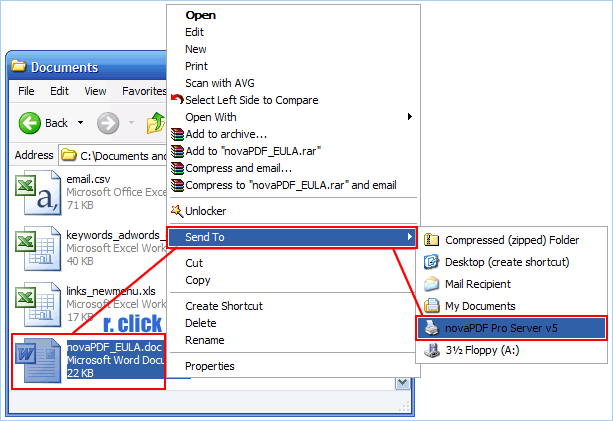
Windows right-click context menu provides shortcuts for different actions. By adding in the context menu a shortcut to the installed novaPDF Printer, you have the option to convert a document to PDF without manually opening the document and using the Print option. When right-clicking a printable document, you can select Send To and select novaPDF - after that the document will be automatically opened and you'll be asked to save the PDF - once the PDF is saved the document will close by itself.
How to add novaPDF to the Send To context menu
The Send To context menu reads its entries from a folder stored on your drive, where a list of shorcuts are contained. To add novaPDF in that Send To list of entries:
- Start Windows Explorer (go to
Start->Programs->Accessories->Windows Explorer)
- Go to the SendTo folder of your profile.
In 2000/XP it can be found in
C:\Documents and Settings\<username>\SendTo (username will depend on the user's menu that you want to change so the relative path is actually this one %systemroot%\Profiles\<user>\SendTo). There is an easier way, if you go to Start->Run type in sendto and press Enter (this will open the Sendto folder in Windows Explorer).
In Windows Vista, the SendTo folder is located in
C:\Users\<User>\AppData\Roaming\Microsoft\Windows\SendTo.- Open the Printers and Faxes folder (Start -> Settings -> Printers and Faxes)
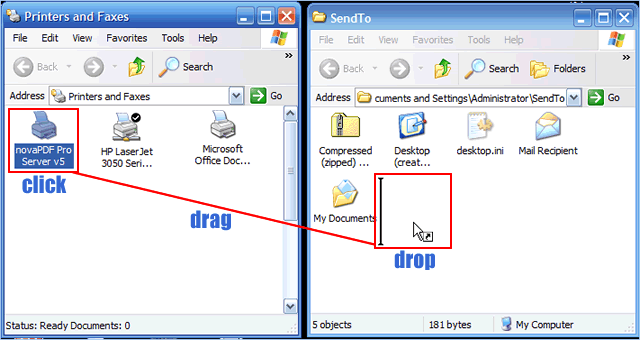
- Click on the novaPDF Printer and drag it to the SendTo directory
- This will create a shortcut to it and if you want to rename it to something else by pressing F2 when it's selected
<span id="sendto-novapdf"></span>
How to create a PDF file using the "Send To - novaPDF" option
To create a PDF file after novaPDF is added as an option to the Send To context menu:
- Right-click the the document that you want to convert to a PDF
- Go to the Send To menu option and select novaPDF
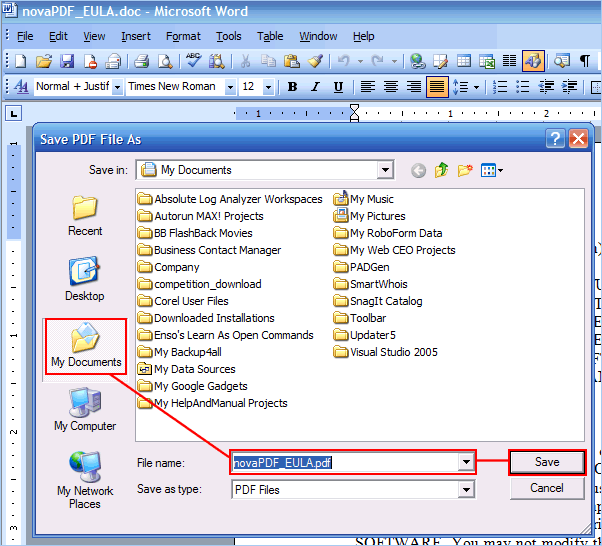
- The document will be opened by the default program associated with that type, and you'll be asked for a location where to save the PDF file
- Once the PDF is generated it will be opened automatically with the default PDF viewer (this can be changed from novaPDF's Properties window) and the original document will be closed