This tutorial shows how to convert forms created in InfoPath to PDF files using novaPDF. novaPDF is a PDF creator that allows generating PDF files from any Windows application that supports printing.
On this page:
- Convert forms from Infopath Designer to PDF documents
- Printing multiple InfoPath form views to a PDF
- Converting a form to PDF with header and footer information
Microsoft InfoPath has 2 components, InfoPath Designer that can be used to design forms, and InfoPath Filler that can be used to fill forms. Converting a form to PDF is quite easy and can be done by printing to the novaPDF virtual printer driver instead of printing to your regular printer. InfoPath offers an option to print multiple views of a form while designing it. This way you can define several views with different font/style settings and print them to PDF to see which one would look better.
Convert forms from Infopath Designer to PDF documents
Here's how you can convert forms created with Infopath Designer to PDF documents:
- If you do not have it already installed, Download and install novaPDF on your computer from our Download page.
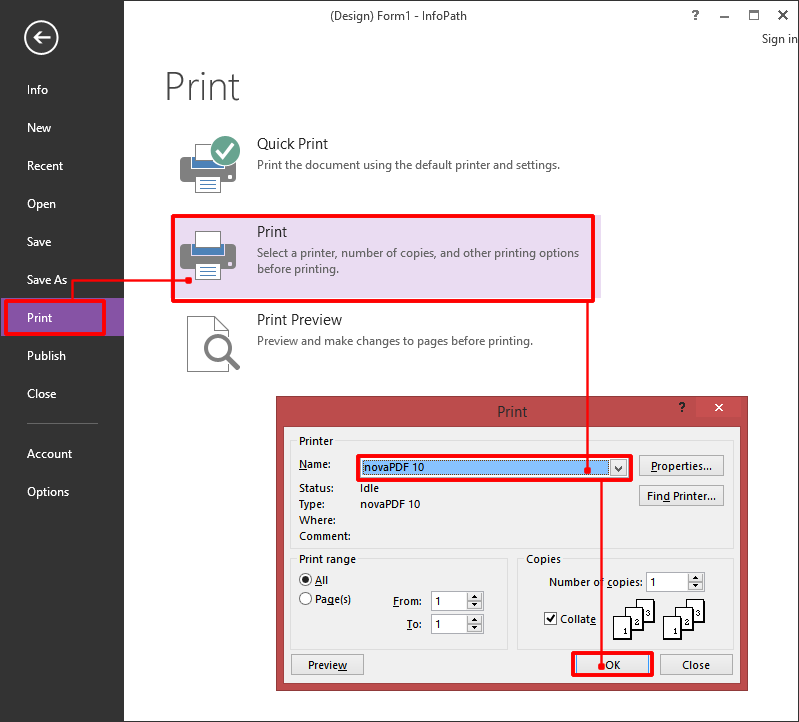
- Open your form in InfoPath Designer and go to File -> Print. Select novaPDF from the list of printers and click OK.
- In the "Save PDF File As" window, fill in the path where you want to save the PDF file, select After save actions or Merging options if needed and click OK to start the conversion.
Printing multiple InfoPath form views to a PDF
InfoPath Designer offers an option to define different views for a form when designing it. Views allow showing various types of forms specific to a category of users. Each view can be different based on the information the user should see or submit. These different form views can be printed by the user into a single PDF file (on different pages) via InfoPath Filler. If you have a form that allows multiple views printing, you can convert that to a PDF:
- Open InfoPath Filler and click on File and Fill Out a Form. Select the form template file (.xsn) that you want to print the multiple views to PDF for.
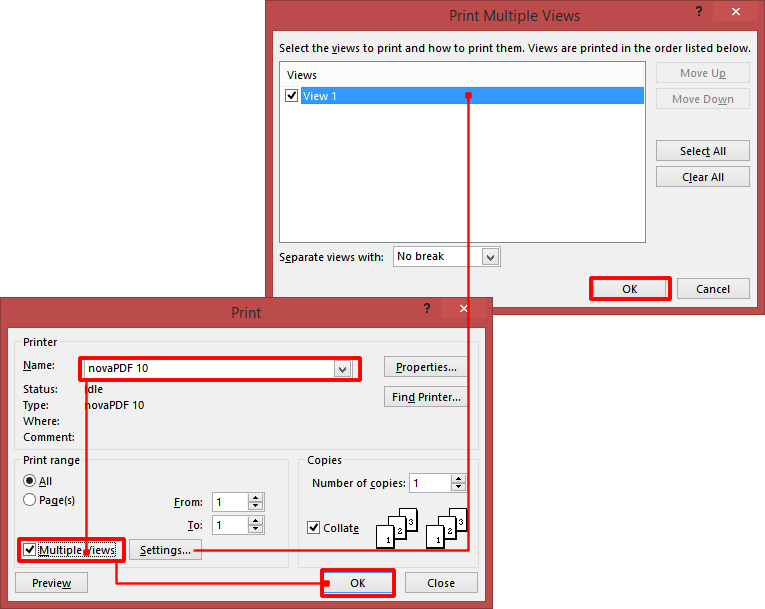
- Go to File and click on Print
- In the Print window you should see the Multiple Views option already checked (if this option is not displayed, it means that the form does not have multiple views or you are restricted from printing multiple views). Clicking on Settings will also display which views are available and you can check the ones that you want printed to PDF (as well as how to separate them in the PDF).
- Click on Ok to start the printing to PDF and choose a location where to save the PDF file (auto-save can be configured too by accessing the Properties->Save tab of the novaPDF Printer)
Converting a form to PDF with header and footer information
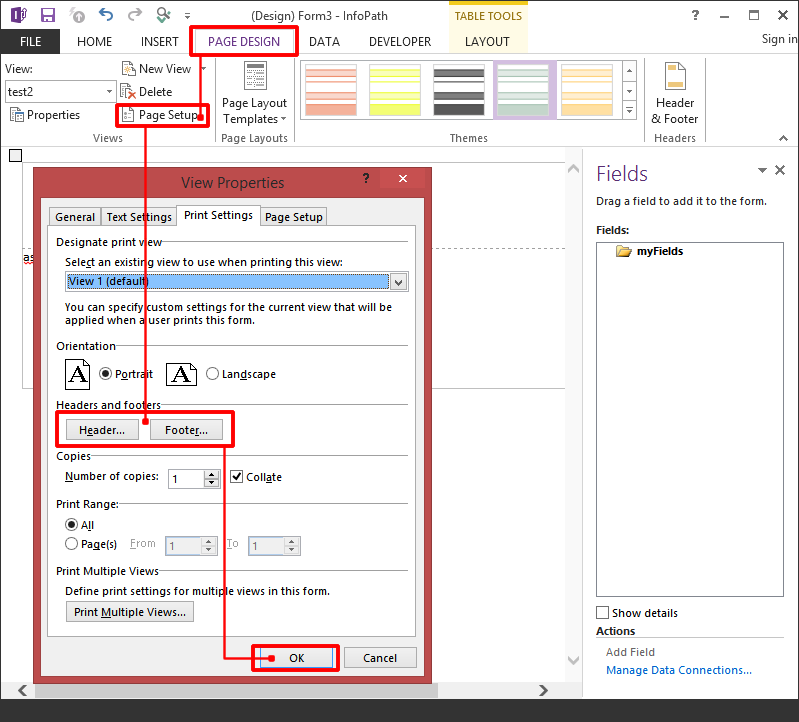
When designing an InfoPath form, you have the option to add custom header and footer information that will be shown when the form is printed by the end user. To add custom header/footer information:
- In InfoPath go to File->Open and select the InfoPath form template you want to add header/footer information to
- Go to File->Page Setup and select Print Settings
- Click on the Header or Footer buttons to add the custom information you want printed in new forms. After you generate the form, when the recipient will print the form to PDF the header and footer information will be printed too