


novaPDF is a PDF converter that allows creating PDF files from any Windows application that supports printing. This tutorial shows some examples on how to convert to PDF from various popular Windows applications, as well as describing the general method for converting documents to PDF.
On this page:
- Convert to PDF WordPad documents (rtf to PDF)
- Convert to PDF Notepad text files (txt to PDF)
- Convert to PDF from other Windows applications that support printing
- Convert to PDF from the novaPDF Getting Started page
novaPDF installs itself as a virtual printer driver so there is no exe file to run in order to convert to a PDF file. To create PDF files you just have to print your documents to novaPDF, like you would print to a normal printer, and the PDF will be created and saved to the designated location (or you will be prompted to enter a location where the PDF should be saved).
Convert to PDF WordPad documents (RTF to PDF)
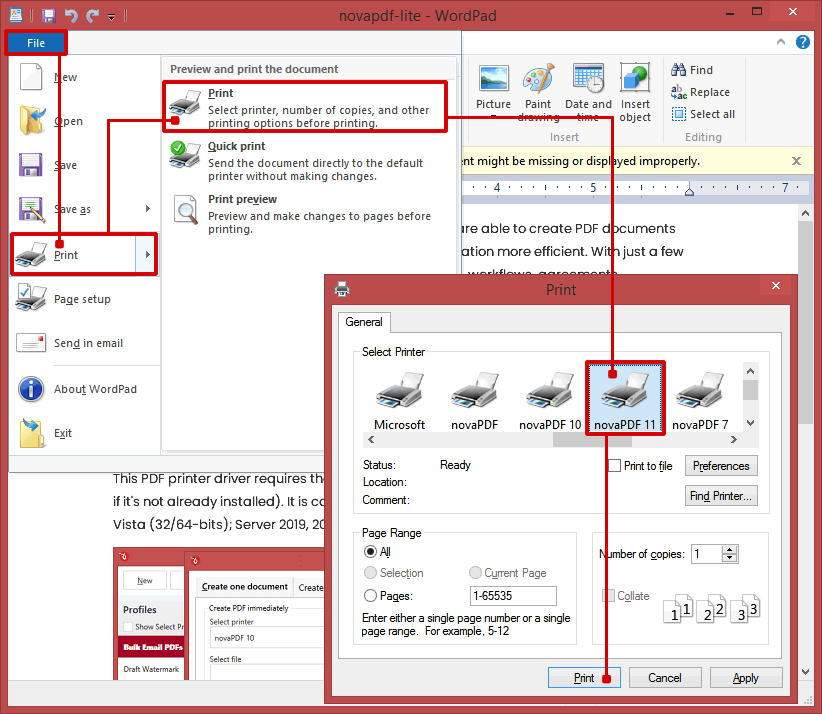
To create PDF files from Microsoft WordPad documents (RTF to PDF):
- Open the WordPad document that you want to convert to PDF file
- Go to File->Print and select novaPDF from the Printers' list
- Click on Print and choose a location where to save the PDF file
Convert to PDF Notepad text files (TXT to PDF)
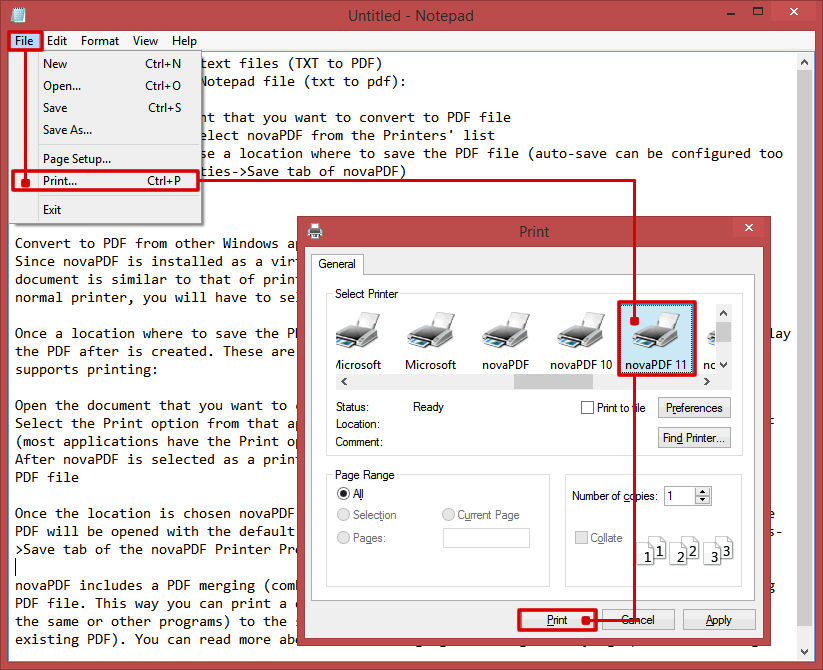
To create a PDF from a Notepad file (txt to pdf):
- Open the Notepad document that you want to convert to PDF file
- Go to File->Print and select novaPDF from the Printers' list
- Click on Print and choose a location where to save the PDF file (auto-save can be configured too by accessing the Properties->Save tab of novaPDF)
Convert to PDF from other Windows applications that support printing
Since novaPDF is installed as a virtual printer, the process of creating PDF files from a document is similar to that of printing the document. Only difference is that instead of the normal printer, you will have to select novaPDF.
Once a location where to save the PDF is set, novaPDF starts converting the file and will display the PDF after is created. These are the steps for creating a PDF from any application that supports printing:
- Open the document that you want to convert to PDF
- Select the Print option from that application’s menu and from the Printers' list choose novaPDF (most applications have the Print option in the File section)
- After novaPDF is selected as a printer, click on Print and choose a location where to save the PDF file
- Once the location is chosen novaPDF will start converting the document and when it finishes the PDF will be opened with the default PDF viewer (this can be changed by accessing the Properties->Save tab of the novaPDF Printer Properties window)
novaPDF includes a PDF merging (combining) option, so it's easier to add content to an existing PDF file. This way you can print a document to PDF, and after that print other documents (from the same or other programs) to the same pdf (before, after or as background/foreground for the existing PDF). You can read more about the PDF merging/combining/overlaying option here: Merge PDF files with novaPDF
You can watch below a video tutorial on how to convert to PDF from Word, Wordpad and Notepad using novaPDF:
Convert to PDF from the novaPDF Getting Started page
This start page can be opened from the program's start group (go to Start->All Programs->novaPDF and click on the executable file in Windows 7 or previous) or by clicking on the Windows button and typing "novaPDF Getting Started" in Windows 8 or newer.
It will let you quickly convert a document to PDF by selecting the document and clicking on Create. However, it will use the default settings of novaPDF to create the PDF file. So, if you need those changed either modify them before creating the PDF (via the Profile manager window) or create the PDF by printing it directly to the novaPDF printer driver.
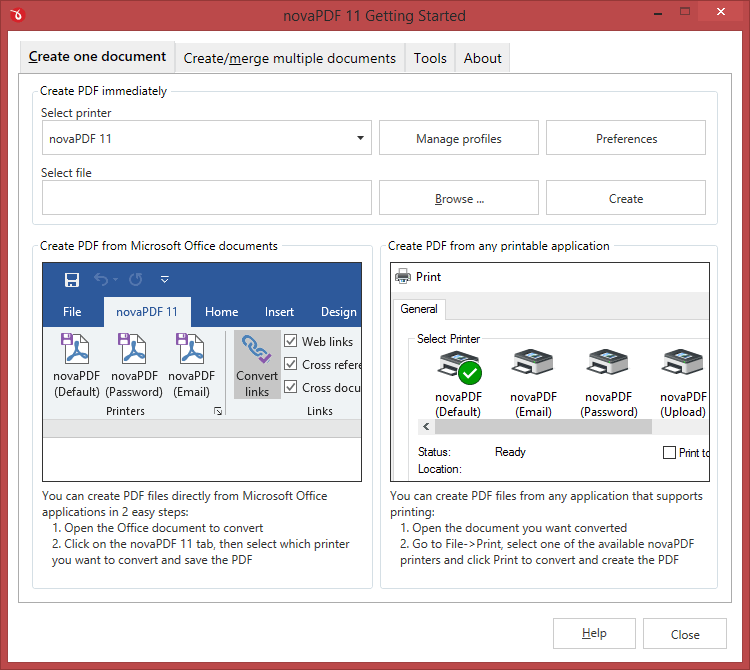
To convert a file to PDF using the Getting Started page, enter the path to the document you want converted into PDF or use the Browse button to select it. Once you selected the document click on the Create button. This will start the application associated with the document you selected, and will ask you where to save the PDF file.
The Getting Started page also contains two columns with screenshots and details. These are only informative and offer the user more information about the other options that can be used to create PDF files. If you want to modify novaPDF's settings you can click on the Preferences button (which also allows you to activate the program if needed). Lastly, you can define printing profiles via the Profile manager.
Using novaPDF Getting Started page to create PDF files - advantages:
- Quick access. The start page is quickly accessible from the novaPDF start menu group or by typing and searching for it. This will launch the start page and let you select a document to convert to PDF.
Using novaPDF Getting Started page to create PDF files - disadvantages:
- Difficult to change preferences. The start page is meant for quick access to convert a document. Thus it will use the default settings of the novaPDF printer for creating the PDF files. In order to use custom settings, you'll have to change those before the printing from the Preferences window.
- Convert hidden hyperlinks. It can convert only visible links in the PDF document (i.e. www.novapdf.com will be converted, but not novapdf.com), unlike the novaPDF add-in for Microsoft Office (which can convert hidden hyperlinks too).
This tutorial explains how to convert to PDF from Microsoft Wordpad (RTF to PDF), from Notepad (TXT to PDF) as well as a general description on how to convert to PDF from other applications. If you have any suggestions for improvement leave a comment or rate the article.