


This tutorial shows how to convert the native SolidWorks file formats (slddwr, sldprt and sldasm) to PDF documents using a PDF printer driver such as novaPDF. If you do not have the novaPDF printer driver installed on your computer, use the Download page to download and install it.
On this page:
- Using novaPDF to convert slddwr, sldprt and sldasm to PDF from SolidWorks
- Video Tutorial SolidWorks to PDF
- Using novaPDF with SolidView to convert slddwr, sldprt and sldasm to PDF
- Using Solidworks eDrawings with novaPDF to convert slddwr, sldprt and sldasm to PDF
- Video Tutorial SolidWorks eDrawings
SolidWorks is a 3D CAD (Computer Aided Design) software application, developed by Dassault Systemes SolidWorks Corp. for Microsoft Windows platforms. Being SolidWorks proprietary formats, the slddrw, sldprt and sldasm file extensions have very few editors or viewers supporting them except the ones provided by SolidWorks. Thus converting them to PDF is an advantage regarding practicability, software support, protection and sharing. Also novaPDF's particular features and enhancements make the conversion from the SolidWorks formats to PDF documents even more suitable for your needs.
With novaPDF you can do the following:
- Password-protect the PDF file automatically when converting to it with novaPDF if your SolidWorks file contains important or sensitive information. That way you can keep the document safe from unauthorized access and other users can only perform the actions you enable on the encryption options.
- Merge the file with other documents after converting it to PDF using novaPDF. As an example, if you need to add a presentation from PowerPoint for the SolidWorks drawing file, you can print the presentation using novaPDF to the PDF that contains the drawing and the PDF files will be automatically merged.
- Add automatically PDF watermarks (text and images) to your converted SolidWorks drawing.
- E-mail your converted drawing automatically with the novaPDF E-mail sending section without the need for using separate E-mail programs. To view a detailed tutorial on how to setup novaPDF to convert and send your documents, read Convert and send PDF via E-mail
- Add additional document information such as Title, Subject, Author and Keywords for a searchable PDF on the converted SolidWorks drawing
Using novaPDF to convert slddwr, sldprt and sldasm to PDF from SolidWorks
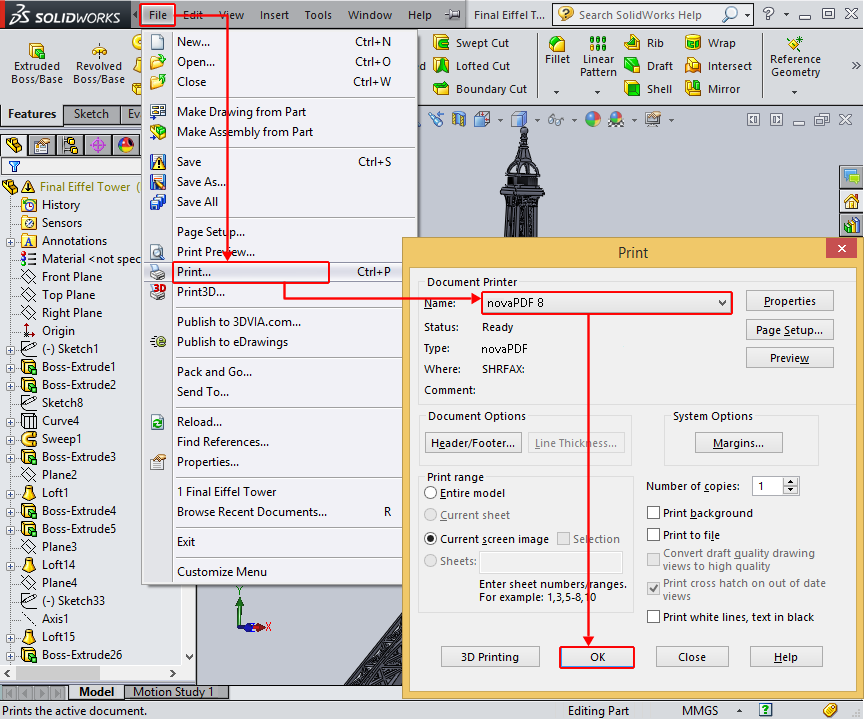
To convert slddwr, sldprt and sldasm files to PDF by using novaPDF with SolidWorks, you need to follow these steps:
- Open your SolidWorks application and hover on the SolidWorks logo to show the menu. Click on File->Open or press Ctrl+O, browse for the drawing file you want to convert to PDF and click Open
- Make any additional changes to the drawing if needed, then go to File->Print or press Ctrl+P and choose novaPDF from the Document Printer dropdown list.
- Before converting the file you can customize novaPDF’s settings by clicking the Properties button. You can also click on Page Setup if you want to modify Resolution and Scale for the converted drawing, choose a Drawing Color and set the Paper Size and Orientation
- In the Print window you also have the option to add Headers/Footers to the converted drawing or set the Number of copies to convert
- Click OK, choose a location where you want the PDF file saved, enable any additional options if they apply to the document (After save action or Merge with PDF file for example) and click OK again. The drawing will be converted to PDF and will have the features and options you selected for it.
Video Tutorial SolidWorks to PDF
{{video}}
Using novaPDF with SolidView to convert slddwr, sldprt and sldasm to PDF
SolidView Lite is a free CAD Tool provided by a 3rd party company (not the official Solidworks) allowing users to View and Print the native SolidWorks file formats (slddwr, sldprt and sldasm). The program can be obtained here: solidview.com/Products/SolidViewLite
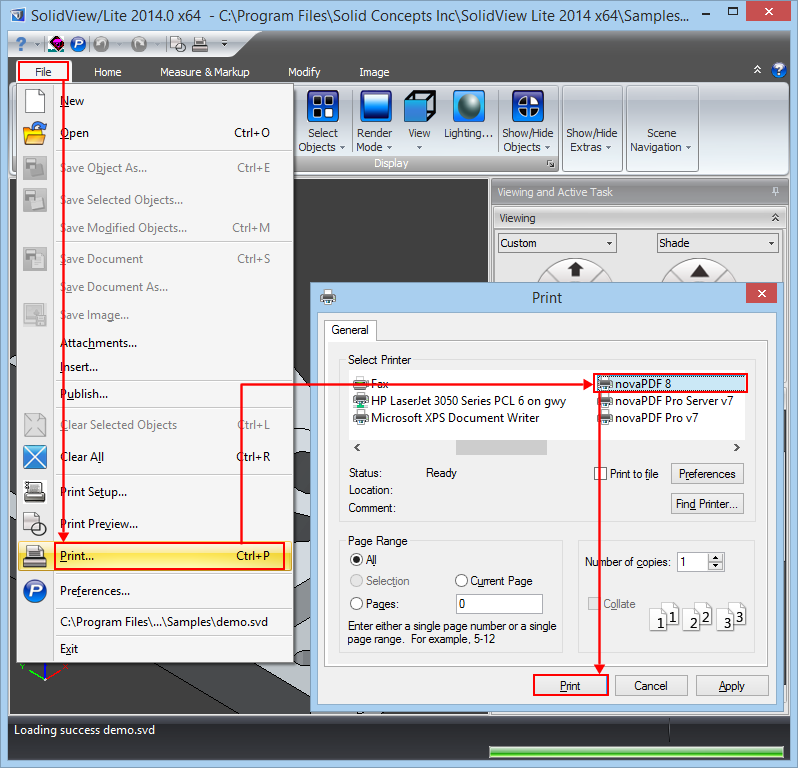
These are the steps for converting your SolidWorks specific files to PDF using SolidView Lite:
- Open SolidView then go to File->Open or press Ctrl+O, browse for the drawing you want converted to PDF and click Open
- Go to File->Print or press Ctrl+P and select novaPDF from the Select Printer dropdown list.
- Click Print, choose a location where you want the PDF file saved and click OK. The drawing will be converted to PDF and will contain the features and options selected for it
Using Solidworks eDrawings with novaPDF to convert slddwr, sldprt and sldasm to PDF
eDrawings Viewer is a free application from SolidWorks, allowing the users to view, print and review multiple types of drawing files. eDrawings Viewer also supports additional file formats (AutoCAD files, eDrawing specific files, STL files, Pro/E files and more) aside from the specific SolidWorks ones for reading and printing. It can be obtained for free from the official SolidWorks website.
This is how you can use novaPDF to convert SolidWorks specific files to PDF from eDrawings:
- Open eDrawings, go to File->Open or press Ctrl+O, browse for the drawing, part or assembly you want to convert to PDF and click Open
- Go to File->Print or press Ctrl+P, choose novaPDF from the Printer section and adjust novaPDF’s settings if needed by using the Properties button
- In the Print options section you can choose the number of copies to convert or a custom color for your layout, plus the quality of the resulting PDF.
- Click OK and choose a location to save the PDF file
Video Tutorial SolidWorks eDrawings:
This tutorial shows how to convert the native SolidWorks file formats (slddwr, sldprt and sldasm) to PDF using novaPDF with SolidWorks Office, SolidWorks Viewer and eDrawings Viewer. It also highlights the advantages and features you can have by using novaPDF to convert your drawings. If you have suggestions on how to improve this article add a comment or rate it.