Buy Now

novaPDF Professional
$62.44 $49.95

novaPDF Standard
$53.27 $39.95

novaPDF Lite
$24.94 $19.95

Awards & Reviews

  • 1_ico
  • 2_ico
  • 3_ico
  • 4_ico

Lockergnome feature

novaPDF is really neat

"novaPDF – Print To PDF Without Breaking The Bank. After downloading and installing the program (which takes all of one minute) you’re ready to print to a PDF. Any program that can print via the standard Windows printer interface can print to PDF (i.e. convert a file to PDF), including text, Word, Excel, […] , novaPDF will convert your files into PDF format without making your wallet cry."

Editor’s Review

This application is great

"[...] Pluses: novaPDF supports multiple profiles. This means that all your settings can be easily saved or loaded. Another great feature is the program’s ability to put bookmarks into the PDF document it creates. Drawbacks/flaws: [none] In conclusion: This application is great for generating PDF documents out of any type of printable data."

Indezine Review

Provides a good balance

"[...] novaPDF provides a good balance between price and performance -- it's a very usable option between free and highly priced PDF creators so that you can provide PDF output capabilities to a large number of users at a reasonable cost."

AC Review

Extremely easy to use

"[...]I highly recommend NovaPDF as a great and very simple way to create standard PDF documents that are fully compatible with Adobe Acrobat Reader. Nova PDF creator is an extremely easy to use and simple PDF creator"

Latest News

November 24, 2009

novaPDF 7 was released.

Changes in version 7:
  • Added option to digitally sign PDF files
  • Type1 fonts are now supported
  • novaPDF now includes add-ins for Microsoft Office (Word and Excel)
  • Added a start page to allow quick access to create PDFs
  • Fully compatible with Windows 7

You can download version 7 here: Download novaPDF 7

Stay Updated

To join, simply enter your email address below and click on Subscribe.

About Us

Softland, the company that develops novaPDF, achieved the Microsoft Certified Partner status with an ISV/Software Solutions Competency. Microsoft Certified Partner
Add comment
Votes: 1
Comments: 0
Summary:
This tutorial shows how to convert a project created with Microsoft Office Project to a PDF file. novaPDF is a PDF converter that allows creating PDF files from any Windows application that supports printing. If you don't have novaPDF installed, use the Download page to download and install it.


Details:
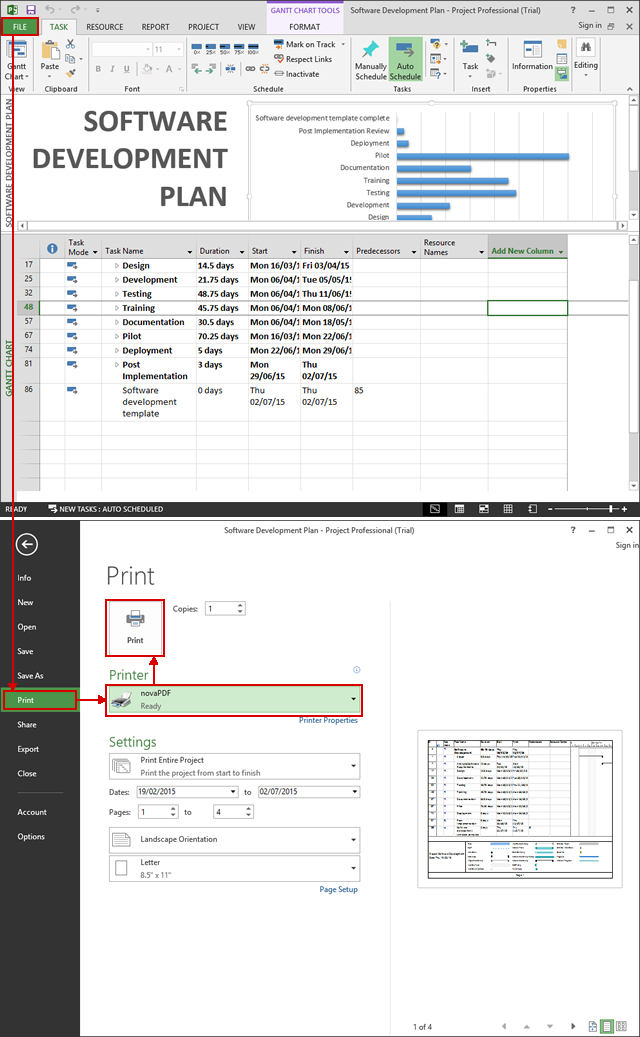
Microsoft Office Project is a software used to schedule and control projects. If you need to send a Microsoft Office Project file for review, physically printing or share it with your team, it's recommended that you convert it first to a PDF. Document sharing is easier using PDF files, because the recipient does not need to have Microsoft Office Project installed in order to open the PDF (being also multi-platform, same PDF can be opened both on Windows and Mac powered systems) and by converting it the original design of the project remains unaltered. novaPDF is a PDF creator that once installed it offers and option to print your project to a PDF file - simply choose novaPDF as a printer and once you click the Print button your project will be converted to a PDF.

Convert projects created with Microsoft Office Project to PDF files (2007)

novaPDF is installed as a virtual printer so you can create PDF files simply by printing to it instead of your normal printer. To convert your Microsoft Office Project 2007 file to a PDF:
  1. Open Microsoft Office Project 2007 and go to File->Open (or press Ctrl+O), browse for the project you want to convert to PDF and open it
  2. Go to File->Print (or press Ctrl+P) and from the Printer section choose novaPDF
  3. You can adjust novaPDF’s settings before creating the PDF file by using the Properties button (for example adding document information, embedding fonts, using auto-save options)
  4. Click on OK and choose a location where you want the PDF file saved. After the PDF is created it will be automatically opened in the default PDF viewer (this can be configured too using novaPDF's Properties window).
Video tutorial on how to convert a Project to PDF from Microsoft Project:

Convert projects created with Microsoft Office Project to PDF files (2003 or previous)

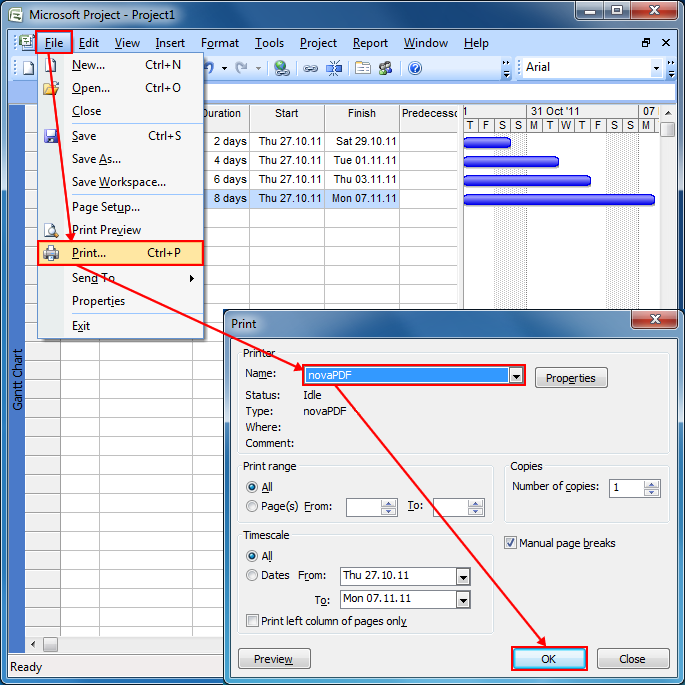
novaPDF is installed as a virtual printer so you can create PDF files simply by printing to it instead of your normal printer. To convert your Microsoft Office Project 2003 file to a PDF:
  1. Open Microsoft Office Project 2003 and go to File->Open, browse for the project you want converted to PDF and open it
  2. Go to File->Print and in the Printer section select novaPDF
  3. Before creating the PDF file you can adjust novaPDF's settings by using the Properties button (for instance adding document information, using auto-save options, embedding fonts)
  4. Click on OK and choose a location where you want the PDF file saved. After the PDF is created it will be automatically opened in the default PDF viewer (this can be configured too using novaPDF's Properties window).


Converting specific Microsoft Project reports to PDF

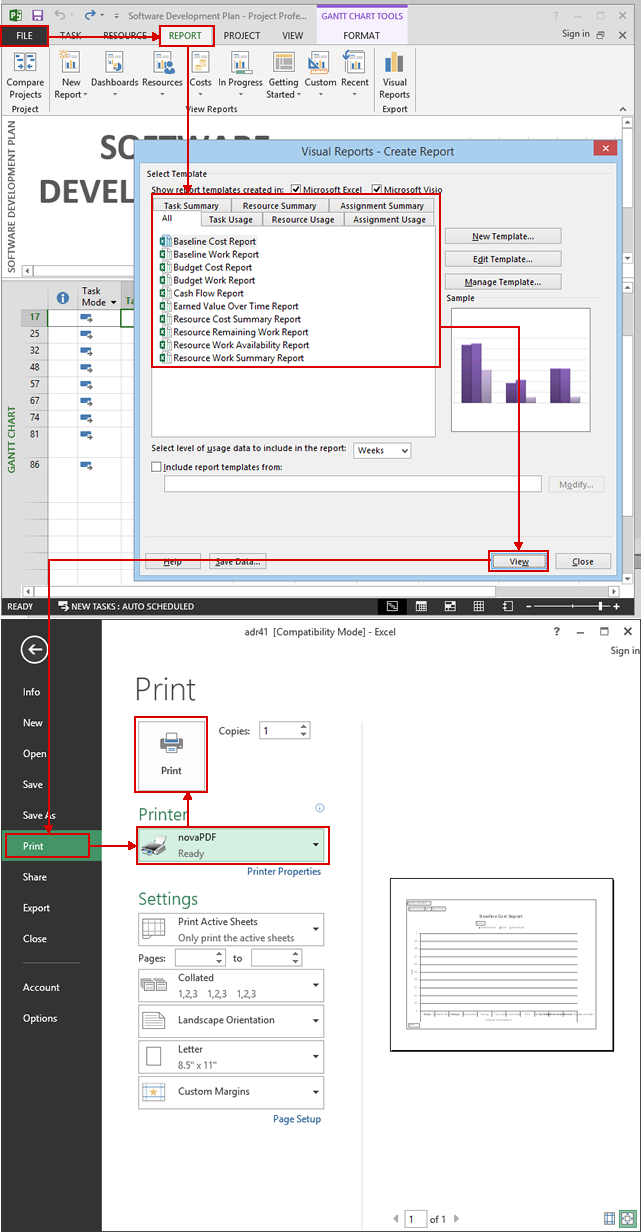
Microsoft Project allows creating different customizable reports for your project, which might be particularly helpful with large projects. To convert custom reports to PDF:
  1. Open Microsoft Office Project and go to File->Open, browse for the project you want to print reports for and open it
  2. Go to View->Reports and from the Reports window choose a general report type and click on Select
  3. In the Overview Reports window you can choose a more specific report type (you can also use the Edit option to customize it) and click on Select.
  4. The Print Preview window will open and allow you to preview the report type before converting it to PDF. To create the PDF click on Print and if novaPDF is displayed in the Printers field then click OK. Note that in the Print Preview mode you cannot change the printer, so if novaPDF is not selected as the printer you'll have to go back to Microsoft Project's File menu, click on Print, select novaPDF and then press Cancel - now if you follow the steps mentioned above you'll be able to convert that Report to PDF by printing it through novaPDF.
Starting with version 6, novaPDF now includes a PDF merging (combining) option, so you can print different projects to a single PDF (before, after or as background/foreground for the existing PDF). Even more, you can print to the same PDF not only from MS Project, but also from other programs combining this way different documents to a single PDF. You can read more about the PDF merging option here: Merge PDF files with novaPDF

Applies to:
  • novaPDF Printer 1.x - 6.x
  • Microsoft Office Project 2000, XP, 2003, 2007
Related searches:MS Project to PDF, Microsoft Project to PDF, Microsoft Project PDF, convert Project to PDF, convert MS Project to PDF
Add comment
Name:
Email:
* Comment:
(Use BBcode - No HTML)


Others in this Category
document Convert JPG to PDF (or other image formats to PDF)
document How to create a PDF file without displaying the Save PDF file as dialog
document Convert SolidWorks to PDF
document How to set novaPDF as a default printer
document Convert OneNote to PDF
» More articles
RSS

Legal Notices Terms of Use

Copyright Softland 2009. All rights reserved.