


This tutorial shows how to use novaPDF to convert a Microsoft Office Access report to a PDF document, as well as how to convert other database objects (tables, forms, queries) to PDF.
Microsoft Office Access is a database management application, part of the Microsoft Office suite. Converting your Access database report (or specific tables, forms and queries from the database) to PDF is an advantage if you want to share the documents with other users (in this case the user does not need Microsoft Access installed to view them).
By installing novaPDF you can convert Access reports, tables, forms and queries to PDF easier than ever. Simply choose novaPDF as a printer and once you press the Print button your database reports/objects will be converted to PDFs.
How to convert Access to PDF with novaPDF
Every object in Microsoft Access that has support for printing can be converted to a PDF. This means you can convert to PDF the content of Access tables, queries, forms, reports, macros and so on. It's as simple as opening that object in Access and clickin on Print.
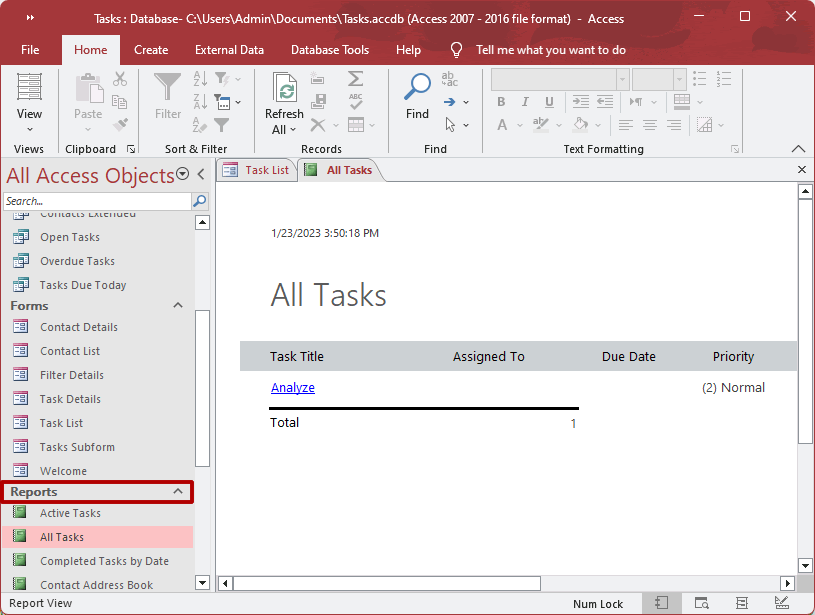
Here's how you can convert a Microsoft Access report to PDF with novaPDF:
- Open the Microsoft Access database you want to convert objects from into PDFs. Double-click on the type of object you want converted, for instance a Report.

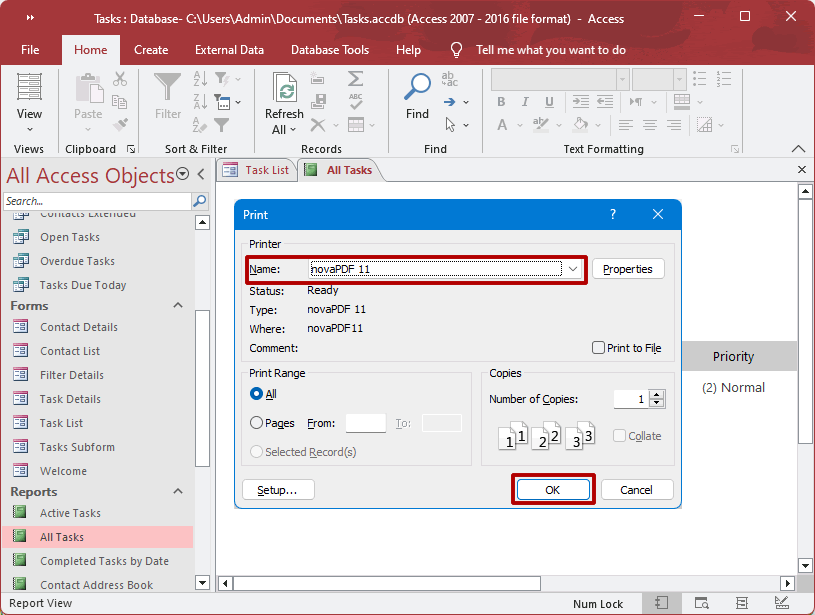
- Click on File->Print (or press Ctrl+P) and from the list of Printers select novaPDF. Click on OK.

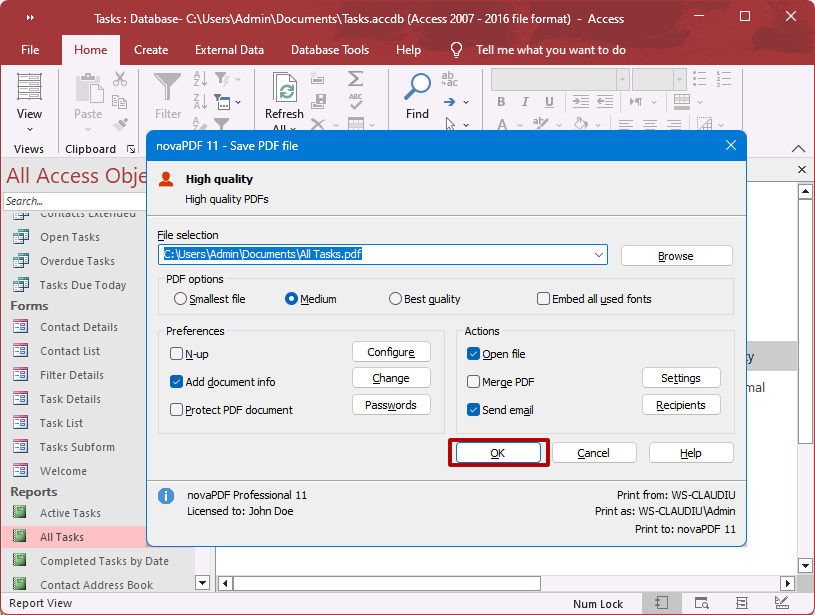
- In the novaPDF save window, select where you want to save the PDF file and click on OK to finish the conversion.

Converting other database objects (tables, forms or queries) to PDF
The other Microsoft Access database objects (tables, forms or queries) can also be converted to PDF documents in the same way as the Access reports.
To convert a Database object (table, form or query) to PDF:
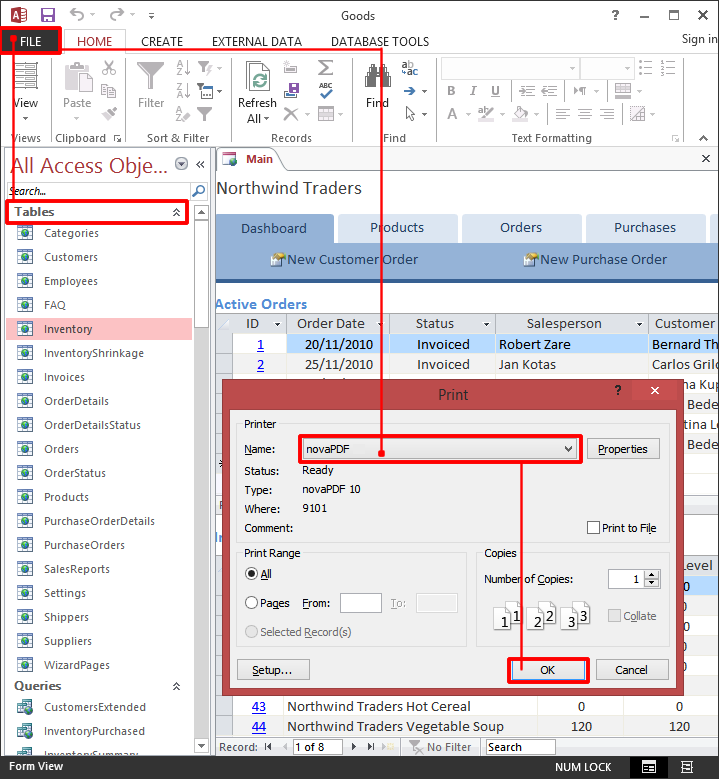
- Open the Access database and expand the Navigation Pane on the left side to view All Access Objects.
- Click on the object you want to convert (i.e. a table) and go to File->Print (or press Ctrl+P)
- Click on Print again to open the printer selection window and choose novaPDF.
- Click on OK and choose a location where you want the PDF file saved
Programmatically saving Access reports as PDFs using novaPDF SDK
If you are a developer and your application communicates with Access (or stores data in its format), you can use one of our PDF tools for developers, novaPDF SDK, to programmatically convert Access reports to PDF files without any user interaction.
To create PDFs programmatically from Access:
- Download and install novaPDF SDK, which includes a COM interface to customize novaPDF printer options and also several code samples on how the integration can be done (including an Access sample)
- Integrate novaPDF SDK with your application using the provided documentation.
- Use the Microsoft Access sample (PDF Reports Access sample to test its functionality (full source code files are included in the setup package).
This tutorial describes how to convert Access objects (reports, tables, forms, queries) to PDF files using novaPDF. If you have any suggestions on how to improve this article add a comment or rate it.