
Search:     Advanced search
Browse by category:
Glossary | Contact Us


Adding a PDF watermark with novaPDF

Add comment
Votes: 0
Comments: 0
Summary:
novaPDF is a PDF creator that allows generating PDF files from any Windows application that supports printing. This tutorial shows how to have text or image watermarks added in the PDF file even if in the original document there are no watermarks.


Details:
novaPDF (Standard or Professional edition) has the ability to apply a text or image watermark to a PDF file. This means that even if in the original document (one being converted to PDF) there is no watermark, it will be added automatically by novaPDF when the conversion is done to the resulting PDF file. You only have to enable and customize the PDF watermarking feature only once through novaPDF's Printing Preferences window and future created PDF file will have the set watermark applied (you can disable it though or even better using novaPDF's profiles feature you can create a printing profile that adds a specific watermark, and another profile that creates PDFs without watermarks).

The PDF watermarking feature is very useful in cases such as:

  • when you are creating a proof PDF file for a document that is not at its final version, so you add a text watermark that writes Draft on each page of the PDF file this way the recipient will know not to use it as the final version
  • when you are creating a PDF file that contains confidential information, you can add a text watermark that says Confidential
  • if you create a PDF for reviewing purposes only you can apply a Review purposes only watermark text so that the recipient will know not to use it for anything else  
  • to add a copyright notice to every page of the PDF file
  • if you want to add the company logo on each page of PDF files to be created, you can do that by adding an image watermark (you can choose a custom position).
The possible uses list could just go on, but the point is that whether you're using the PDF watermark feature for branding or protecting a resulting PDF file, novaPDF offers you the options to do that.  

How to add text watermarks

Configuring novaPDF to add text watermarks when creating PDF files can be done through its Printing Preferences window. Note that once the PDF watermarks feature is enabled and a text/image watermark is added, that watermark will be added when creating a PDF file with novaPDF from any document that supports printing (so you don't have to go in manually each time you create a PDF to enable the watermarks. To enable the PDF watermarking feature and to add a text watermark: 
  1. Go to Start -> Settings and open the Printers and Faxes list (or go to Start->Run, type control printers and press ok). Right-click on novaPDF and select Printing Preferences
  2. In the Printing Preferences window go to the Watermarks tab and check the Enable watermarks option. You'll see the  New Text and New Image buttons becoming active.
  3. Click on the New Text button to open the New Text Watermark configuration window. In here you can configure the text watermark properties. Once you set the desired options for the text watermark, you can click OK to save it (if you want to save it for future use but don't want to have it activated you can uncheck the option Visible). Options that you can set:
    1. Name - you can enter a name for the watermark (note this is not the text that will appear in the pdf, it's used only in the list of available watermarks that you see on the Watermarks tab and must be a unique name).
    2. Print on -  this lets you choose on which pages of the resulting pdf file to print the watermark. All pages is selected by default, so the watermark will be printed on every page. Other options you can choose: First page, Odd pages, Even pages or Range. If Range is selected, the Range field becomes writable and you can put in there on which pages to print the watermark in the following format (without quotes): "2, 3, 5" (to print the text watermark on page no 2, 3 and 5) or "2 - 5" (to print the text watermark on all pages from 2 to 5).
    3. Text - the text you enter here is actually the text that will appear as the PDF watermark. Any character is accepted and you can enter up to 64 characters. As you type you will see in the Preview section how the watermark looks.
    4. Text properties - you can select here the type of the font (in the Font section), the style of the font (bold, italic and/or outlined) and the size of the font (if the Fit to margins options is selected the size of the font will be automatically adjusted to fit in the limits of the page margins). If the As background option is not checked, the text watermark will be placed on top of the content that currently exists in the document (otherwise it will be placed under the existing content).
    5. Other - You can select here the color of the font (Color), choose a rotation angle if you want the text to be rotated (Rotation, values accepted between -180 and +180) or set an Opacity value so that the text is not fully visible (values from 0 to 100).
    6. Preview - in this section you will be able to see how the text watermark will be displayed in the PDF file.
  4. Now that the text watermark is defined and saved it wil be shown in the Watermarks list. This shows also the type of the watermark (text or image) and from this view you can also choose to make a watermark visible or hidden by checking/unchecking the thick box in front of its name. Press OK to save the settings. If you chose to have the text bookmark visible, the next time you will create a PDF file the text watermark will be printed in it.
  5. If you want to test how the text watermark is printed, open a document that supports printing (a Word document for instance), go to File - Print, select novaPDF from the Printers list and click on Print. You'll see the watermark printed in the resulting PDF file.
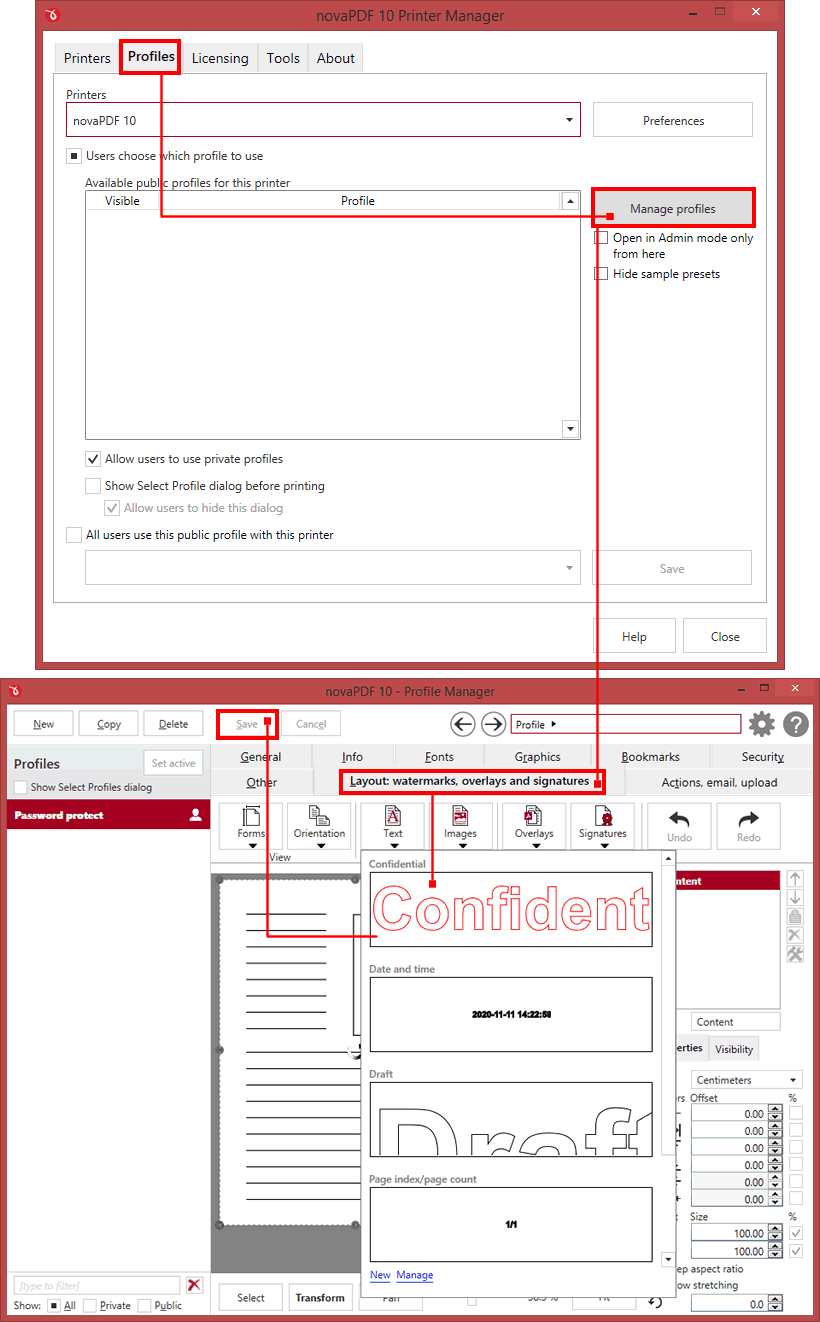
PDF text watermark

How to add image watermarks

Configuring novaPDF to add image watermarks when creating PDF files can be done through its Printing Preferences window. Note that once the PDF watermarks feature is enabled and a text/image watermark is added, that watermark will be added when creating a PDF file with novaPDF from any document that supports printing (so you don't have to go in manually each time you create a PDF to enable the watermarks. To enable the PDF watermarking feature and to add an image watermark: 
  1. Go to Start -> Settings and open the Printers and Faxes list (or go to Start->Run, type control printers and press ok). Right-click on novaPDF and select Printing Preferences
  2. In the Printing Preferences window go to the Watermarks tab and check the Enable watermarks option (if it's not already checked). You'll see the  New Text and New Image buttons becoming active.
  3. Click on the New Image button to open the New Image Watermark configuration window. In here you can configure the image watermark properties. Once you set the desired options for the image watermark, you can click OK to save it (if you want to save it for future use but don't want to have it activated you can uncheck the option Visible). Options that you can set when defining image PDF watermarks:
    1. Name - you can enter a name for the image watermark (note this is used only in the list of available watermarks that you see on the Watermarks tab and must be a unique one).
    2. Print on -  this lets you choose on which pages of the resulting pdf file to print the image watermark. All pages is selected by default, so the image watermark will be printed on every page. Other options you can choose: First page, Odd pages, Even pages or Range. If Range is selected, the Range field becomes writable and you can put in there on which pages to print the image watermark in the following format (without quotes): "2, 3, 5" (to print the image watermark on page no 2, 3 and 5) or "2 - 5" (to print the image watermark on all pages from 2 to 5).
    3. File - here you can browse and choose an image that will be used as the watermark. Image formats that are recognized: .BMP, .DDS, .GIF, .ICO, .JPG, .JIF, .JPEG, .JPE, .PBM, .PCX, .PNG, .PPM, .PSD, .TGA, .TARGA, .TIF, .TIFF, .XBM. After you click ok you will see in the Preview section the image watermark will look (by default the image position will be the center of the page, but it can be modified using the Custom Position section).
    4. Image properties - by default the Fit to margins and Keep aspect ratio options are checked. The Fit to margins option will adjust automatically the image to fit in the limits of the page margins (keeping the aspect ratio of the image). If you uncheck the Fit to margins option you can enter custom dimensions for your image (units for the dimensions are those selected in the Units drop-down - Inches, Milimeters or Points) and the image will be automatically adjusted as seen in the Preview section (note that if the Keep aspect ratio option will be unchecked, the image will be distorted according to the entered custom size. If the As background option is not checked, the image watermark will be placed on top of the content that currently exists in the document (otherwise it will be placed under the existing content).
    5. Other - if you check the Transparent color option you can select a specific color from your image to be transparent when the image watermark is added to the PDF file. When this option is checked, the Color variation field is enabled too and you can add in there a value up to 10. This value represents the color tolerance. For example if you enter 0, only adjacent pixels of exactly the same color tone you chose are selected and made transparent. If you enter 10, a wider range of tones will be made transparent. Using options in this section you can choose a rotation angle if you want the image to be rotated (Rotation, values accepted between -180 and +180) or set an Opacity value so that the image is not fully visible (values from 0 to 100).
    6. Preview - in this section you will be able to see how the image watermark will be displayed in the PDF file.
  4. Click OK to save the image watermark and you will see the watermark in the Watermarks list. This shows also the type of the watermark (text or image) and from this view you can also choose to make a watermark visible or hidden by checking/unchecking the thick box in front of its name. Press OK again to save the settings. If you chose to have the image bookmark visible, the next time you will create a PDF file the image watermark will be printed in it (as well as other watermarks that are defined and set to visible).
  5. If you want to test how the image watermark is printed, open a document that supports printing (a Word document for instance), go to File - Print, select novaPDF from the Printers list and click on Print. You'll see the image watermark printed in the resulting PDF file.
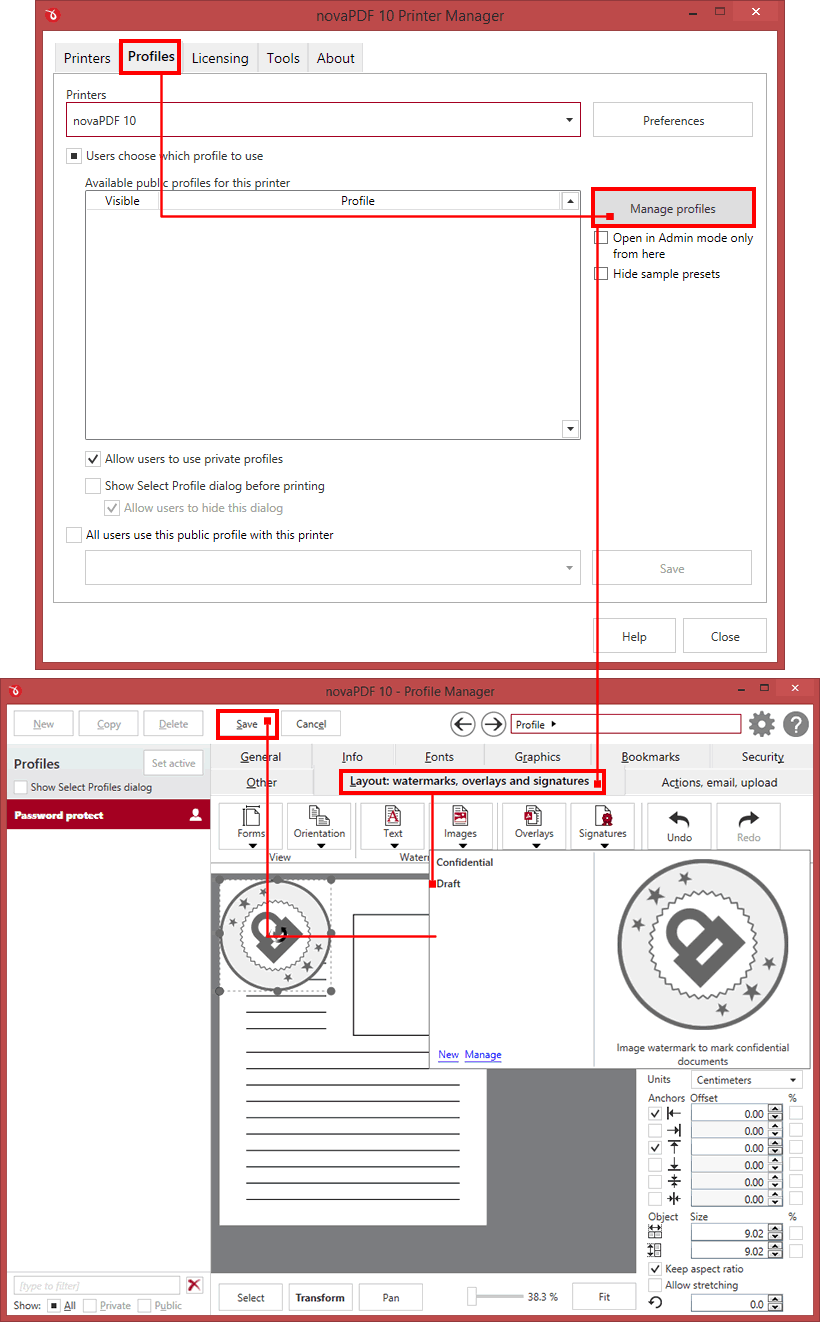
PDF image watermark

Set the watermark to be added in a custom position in the PDF

When defining the watermark (text/image) you also have a Custom position option. This gives you the option to place the watermark in a specific position (for instance you can have its origin aligned to the right or bottom, centered vertically or horizontally or at a specific distance from the top or left margins). To customize the position of the watermark:
  1. If you are defining a new watermark, in its definition window there is a button called Custom Position you need to press to open the window that allows customizing the watermark's position. To change the position for an existing watermark, from the Watermarks list view select the watermark and click on Edit -> Custom Position
  2. On the Custom Position window you have several options available that allow customizing the watermark position:
    1. Margins - this section lets you define a region around the watermark that will remain empty when printing. Margins can be defined for all sides individually (Left, Right, Top, Bottom). The numbers you enter are expressed in the selected measurement unit (from the Units section). The sum of the left/right margins cannot exceed 2/3 of the page width, and the sum of the top/bottom margins cannot exceed 2/3 of the page width. Note that these margins only affect the watermark, not the content of your page (you can consider them a way to "trim" the watermark).
    2. Position - Fit to margins is set by default, and this is the same option as on the watermark definition window (will center the text/image both vertically and horizontally and its width will match the page width). To customize the position of the watermark, select the Customize origin option that will enable the options in the Origin section.
    3. Origin - By selecting the Align to right option (available when the Center vertically option is disabled) you can have the watermark aligned to the right margin of the page and also you can set a custom Top origin (distance between the center of the watermark and the top margin of the page). By selecting the Align to bottom option (available when the Center horizontally option is disabled) you can have the watermark aligned to the bottom margin of the page and also you can set a custom Left origin (distance between the center of the watermark and the left margin of the page). If you don't want to use the custom settings anymore you can click on the Reset to Default button to return to the initial configuration of this page.
    4. Preview - This will show in real time how the options you set affect the look of the watermark.
  3. Click OK in the Custom Position window to apply the settings and then again on the watermark definition window to save these changes.
Custom watermark position


Applies to:
  • novaPDF Printer 4.x - 5.x
  • Microsoft Windows 2000, XP, 2003, Vista
Related searches: PDF watermark, add picture to PDF, how to watermark a PDF, watermarks in PDF, PDF watermarking
Others in this Category
document Convert a web page to PDF
document What PDF versions does novaPDF support and how can I change that?
document How to add novaPDF to the Send To context menu
document Printing an entire Excel workbook to a single PDF file
document Adding PDF bookmarks with novaPDF
» More articles


RSS

© 2002-2008 Softland. All Rights Reserved.
PDF Creator novaPDF
Create PDF for a paperless office
home Home   contact usContact us   partnershipsPartnerships   bookmarkBookmark   Site updated: 12-Mar-2008
DownloadsDownload

Download, install and use novaPDF. Latest version: 5.4 build 255

Download PDF creator
promotionsSpecial Offers

Current discounts:
- up to 25% for Desktop Editions
- up to 25% for Server Editions
- 20% Academic Discount
- up to 16% for Developer Tools

buyBuy Now
Professional edition $39.95
(Save $10)
Standard edition $29.95
(Save $10)
Lite edition $19.95
(Save $5)
Buy Now
newsLatest News

novaPDF 5.4 released
February 11, 2008

What’s new (read more):
 » Added Copy Text/Image Watermarks dialog
 » Added "Lookup Address" option when sending emails
 » Corrected rotated and vertical texts conversion
 » Corrected conversion from WordArt, MS Word backgrounds and MS Visio drawings
 » Unistaller deletes now the driver files

newsletter News via Email | rss feed News via RSS
sdkDeveloper Tools

novaPDF SDK is a software development toolkit that can be used by software developers and programmers to add the ability to create PDF files in their applications.
novaPDF OEM is a PDF solution that programmers can use to generate PDF files that will be post-processed by their applications. […]

Reviews & User QuotesPDF Creator Reviews

"novaPDF is a really neat tool. Basically, it’s a PDF printer driver that prints to a PDF file instead of paper.

See more reviews about nova PDF
[…] novaPDF is a great product that works without forcing the user to configure anything. The convenience alone is worth the money." […]

Jason Pullara, Editor
Currently supported languagesLanguages

News:
- Finnish and Arabic languages added.
- Spanish, French, Swedish and Chinese Traditional languages updated.

Help us translate novaPDF and we will give you licenses for novaPDF Professional and mention you on the Languages page. […]

awardsAwards

novaPDF received the Editor’s Pick from Soft32, a major download site:

PDF creator reviews

See the Awards page for more ratings.

knowledgebaseKnowledgebase articles

Latest articles on how to:
 » Create PDF files
 » Convert JPG to PDF
 » Convert Powerpoint to PDF
 » Convert Publisher to PDF
 » Convert web pages to PDF
Full article list in the knowledgebase.